Two-factor authentication
Adding a code from an authenticator app to your sign-in — optional for most members, compulsory for owners and admins.
Two-factor authentication adds a six-digit code from your phone to your sign-in. It takes about two minutes, and owners and admins must use it.
Before you start
- An authenticator app on your phone. Any six-digit authenticator app works, such as Google Authenticator, 1Password, Authy or Microsoft Authenticator. Once you enrol, you need it to sign in.
Turning it on
Open Security
Open Settings and press the Security tab. The Two-factor authentication card shows Off, with Set up beside Authenticator app.
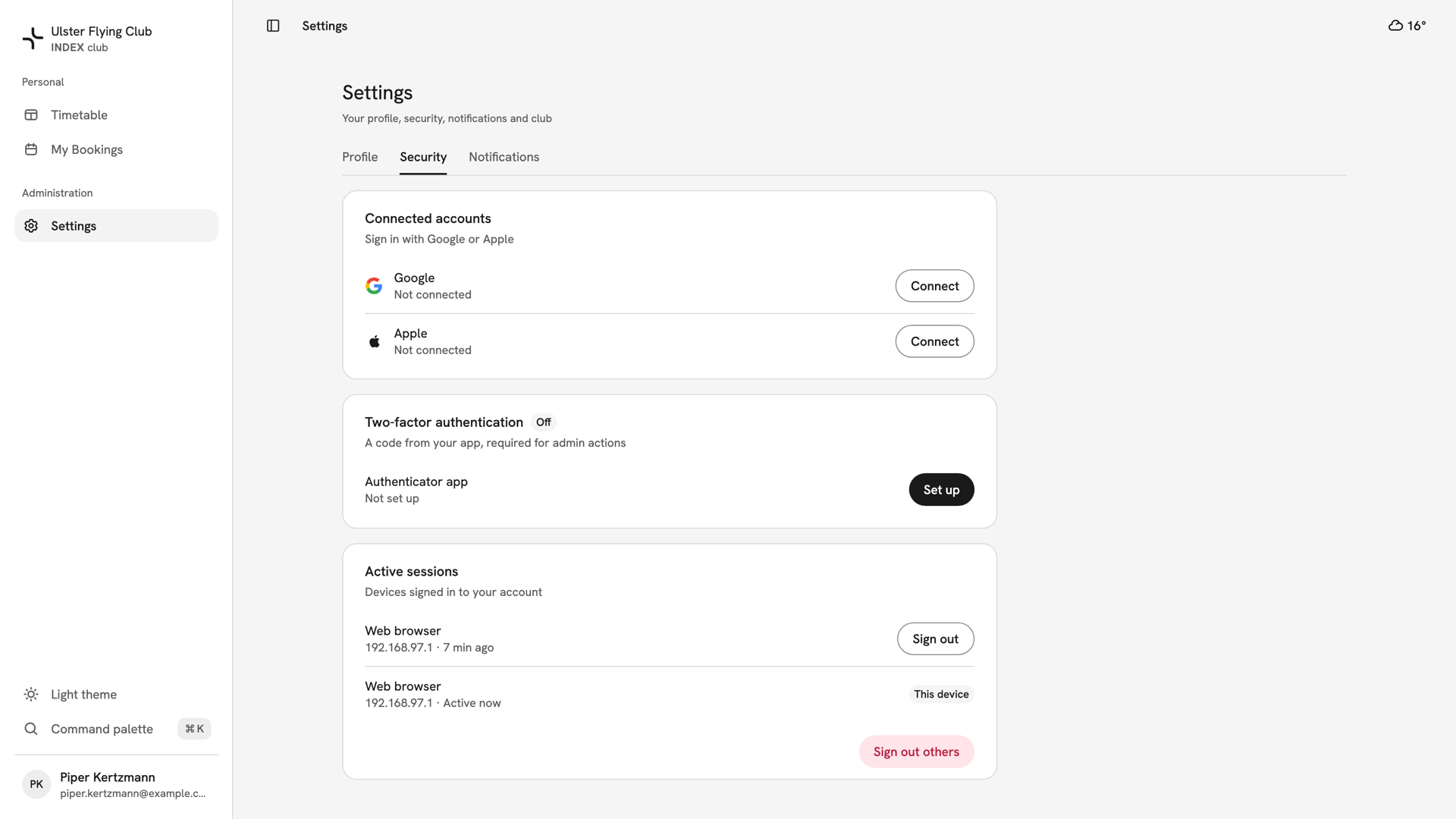
Piper Kertzmann's Security tab, with Two-factor authentication Off and the Set up button beside Authenticator app. Scan the QR code
Press Set up. In Set up two-factor, scan the QR code with your app. On the phone that holds the app, press the key under the code to copy it instead. Then press Next.
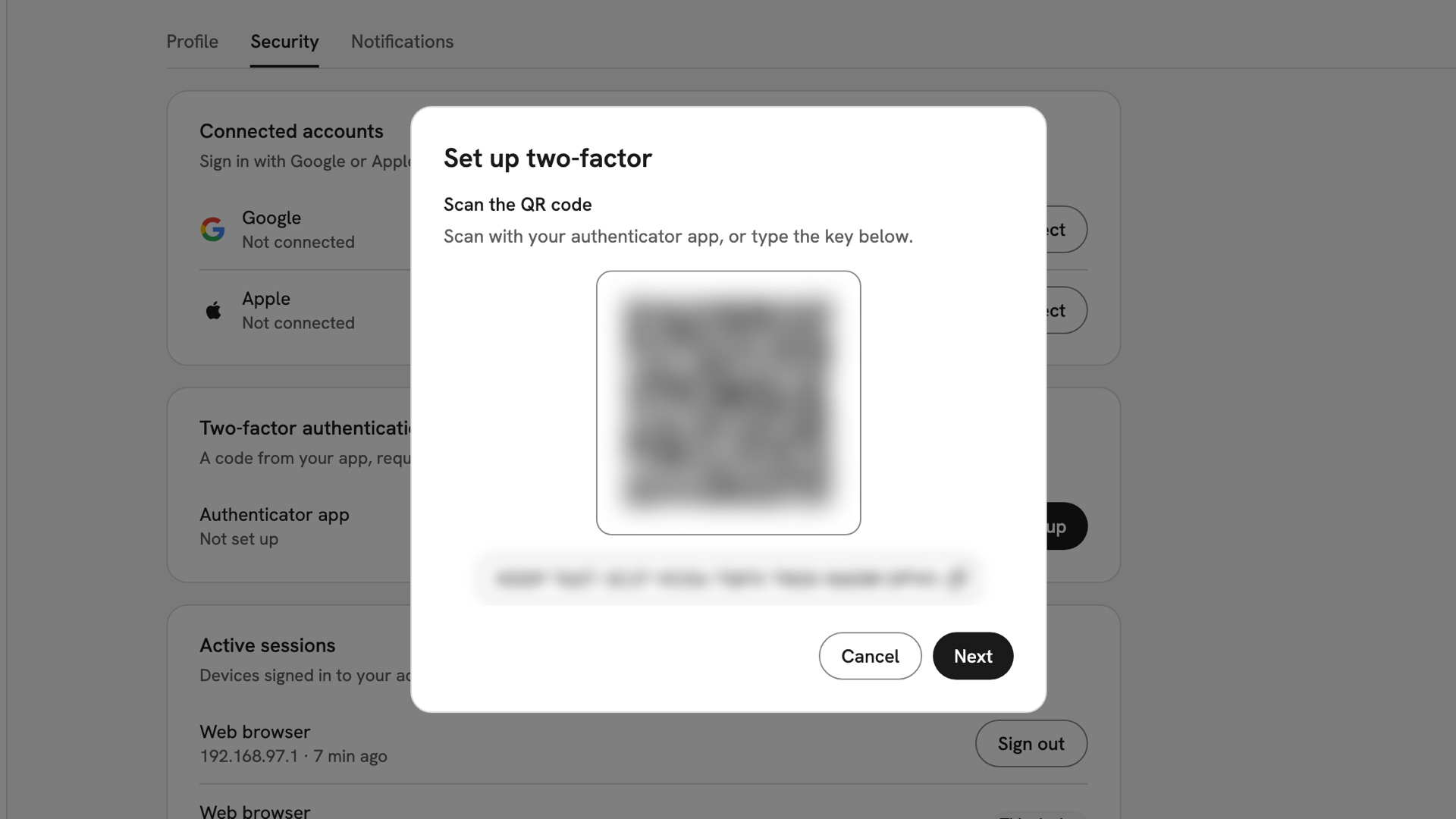
Set up two-factor on its Scan the QR code step, with the QR code and setup key blurred. Enter the code
Type the six digits your app shows. The sixth digit submits them, or press Verify and finish. If the code is refused, wait for the next one and type it.
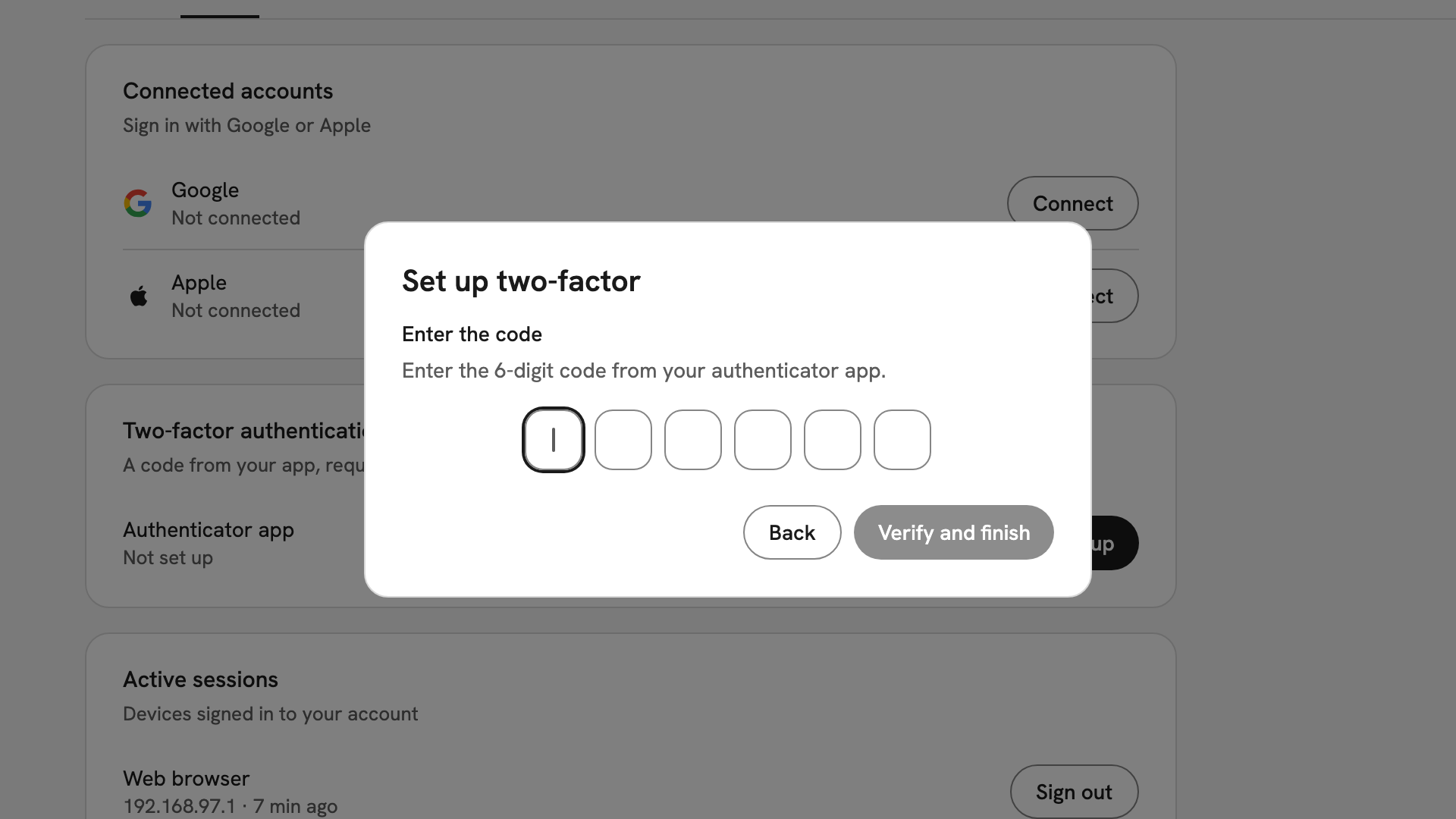
The Enter the code step, with six empty boxes, Back and Verify and finish. Check it is on
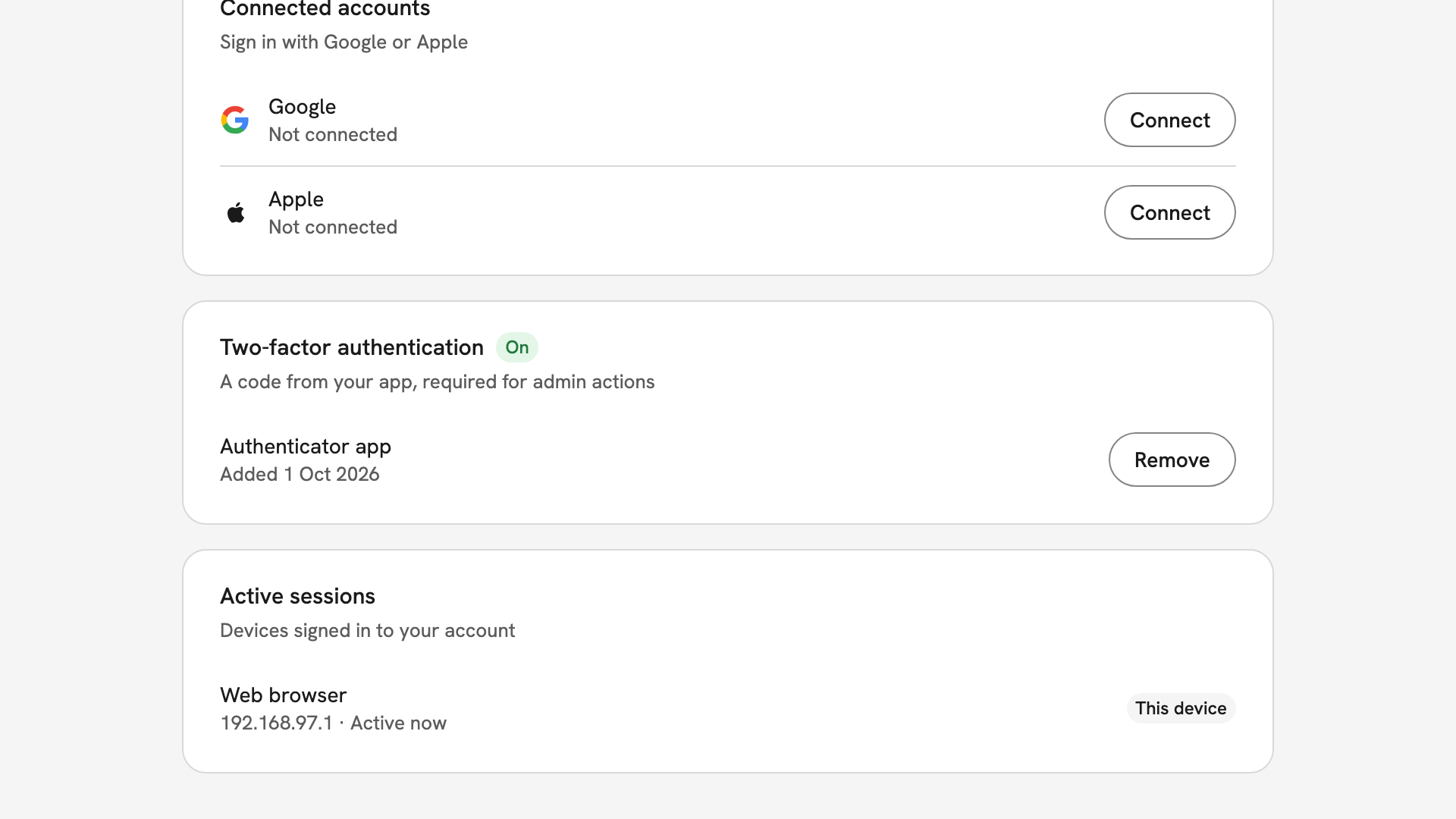
The dialog closes with Two-factor turned on. The card now shows On, Added with today's date, and Remove.
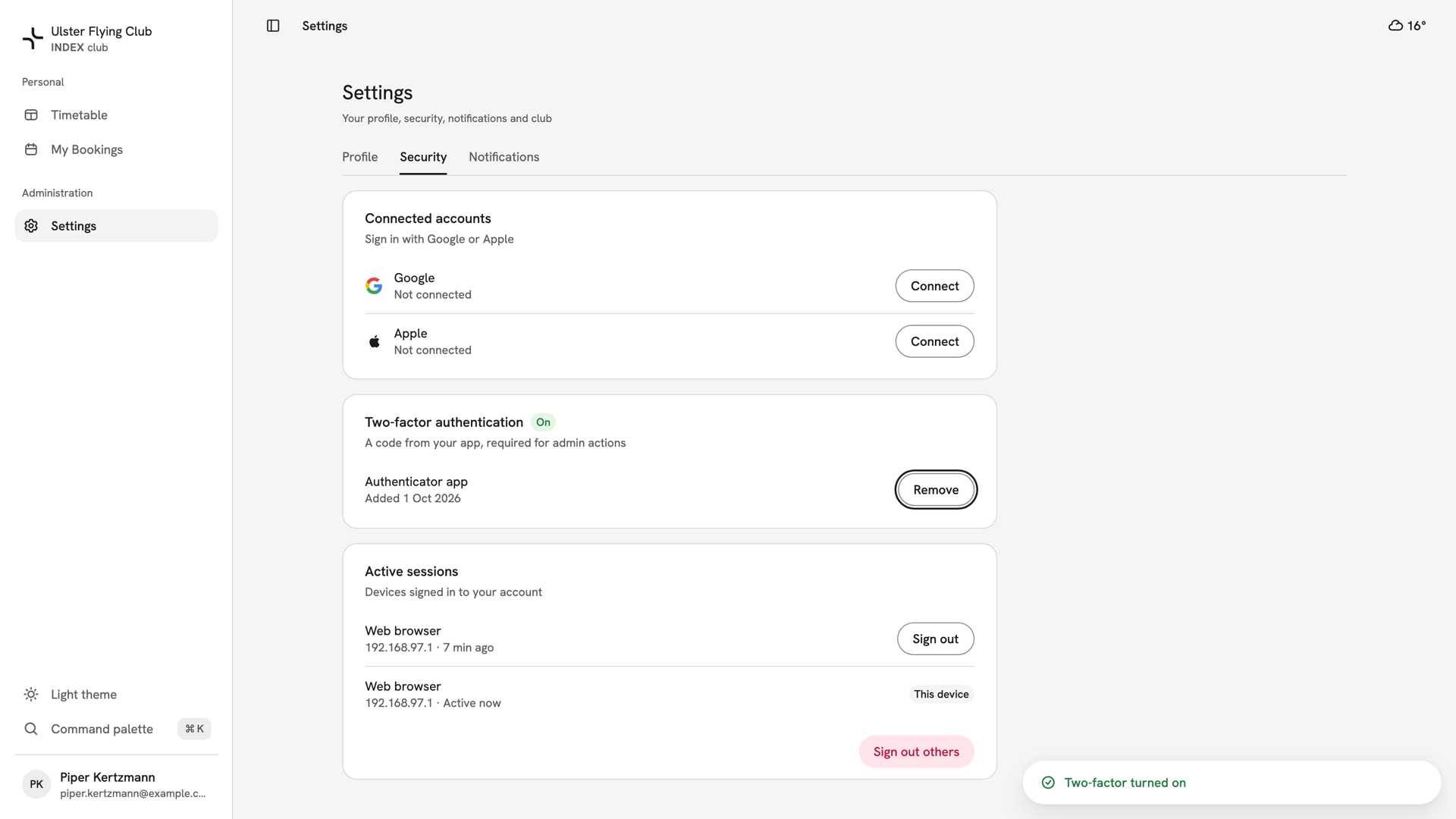
The card after enrolling: On, Authenticator app Added 1 Oct 2026, and the Two-factor turned on confirmation.
After you have turned it on
From your next sign-in, Two-factor authentication asks for a code before the app opens. To change phones, press Remove, enter a code from the old phone, then set up the new one. Owners, admins and Instructor & Admin who remove it go straight back to the setup steps.

If something goes wrong
- "That code didn't work. Try again." The code expired as you typed, or your phone's clock has drifted. Wait for a fresh code, and set your phone's time to automatic.
- The phone with your authenticator is lost. Removing it needs a code, and there are no backup codes. Contact your club to resolve it outside the app.
- There is no Set up button. An authenticator is already enrolled. Only one is allowed: remove it before adding another.
- The app shows only the setup steps. Your role requires two-factor authentication. Finish the three steps and the app opens.
Still stuck? Your club cannot reset an authenticator from inside INDEX Club, so speak to whoever administers the club's account.
Last updated 1 October 2026