Your teaching hours
Setting your usual teaching week and one-off changes to it, from My availability to the updated timetable.
Your teaching hours decide when the timetable can book you. Setting them takes about five minutes.
Before you start
- An active instructor record linked to your login. The instructor role alone is not enough: without the link, My availability says "No instructor profile". See What instructors can see.
- Permission to edit your own hours. The instructor role has it. Without it, the page has no Edit hours or Add exception buttons.
Setting your hours
Open My availability
Press ⌘K, type "my availability" and press Enter. The page shows your Standing week, then Next fourteen days with the hours you teach each day and how many lessons you have.
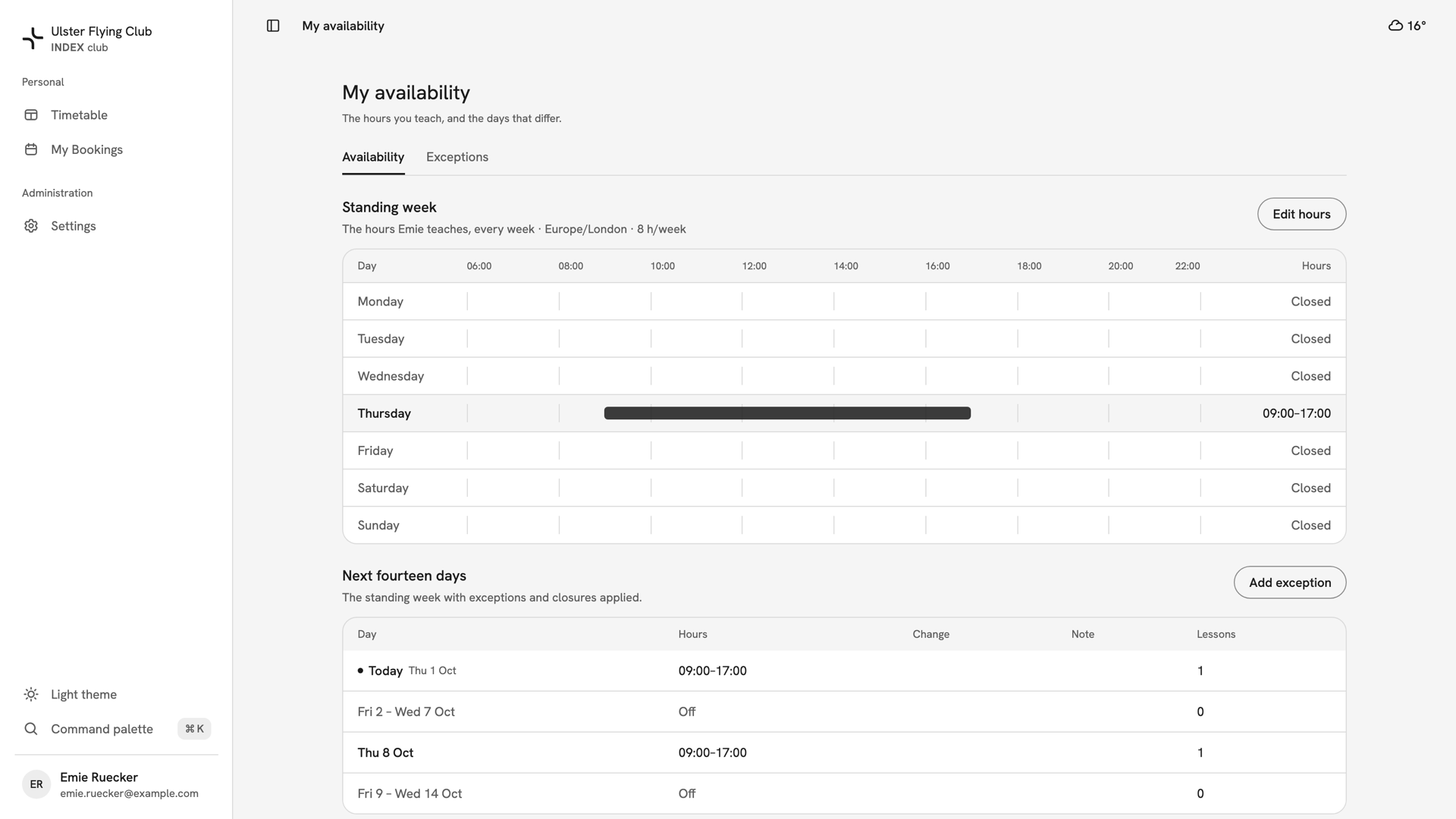
Emie Ruecker's My availability: a standing week of Thursdays 09:00–17:00, then the next fourteen days with one lesson on each Thursday. Edit the standing week
Press Edit hours to open Standing week, on the club's clock. Switch each day on or off and set its times; Add range gives one day a second range. A day's ⋯ menu offers Copy times to all open days.
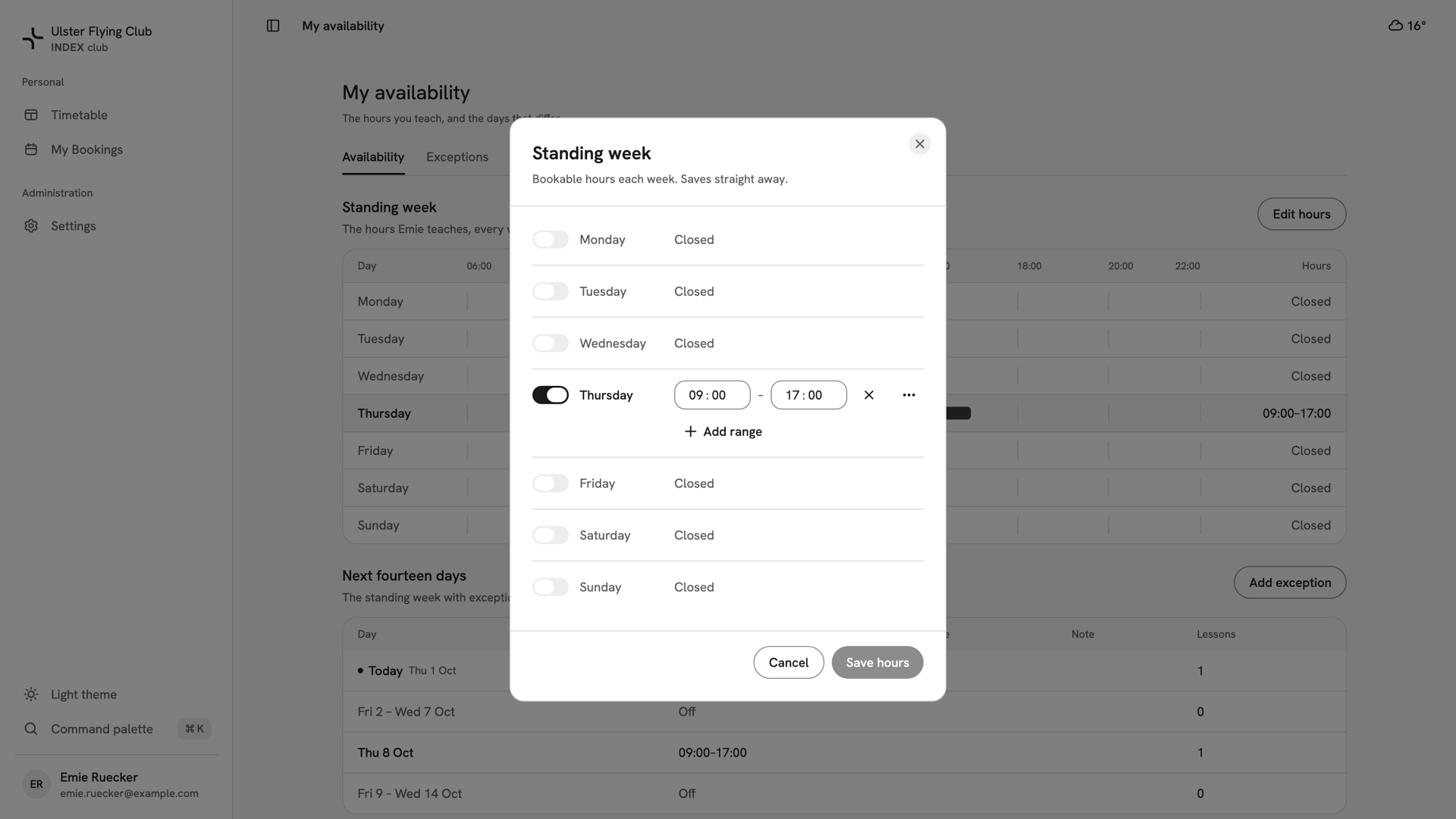
The Standing week drawer as it opens: Thursday switched on from 09:00 to 17:00 and every other day Closed. Check the impact, then save
If a change takes hours away from booked lessons, the drawer counts them and lists the first few, such as "60 upcoming bookings will be flagged for reschedule". Press Save hours; there is no second prompt. Cancel and then Discard throws the change away.
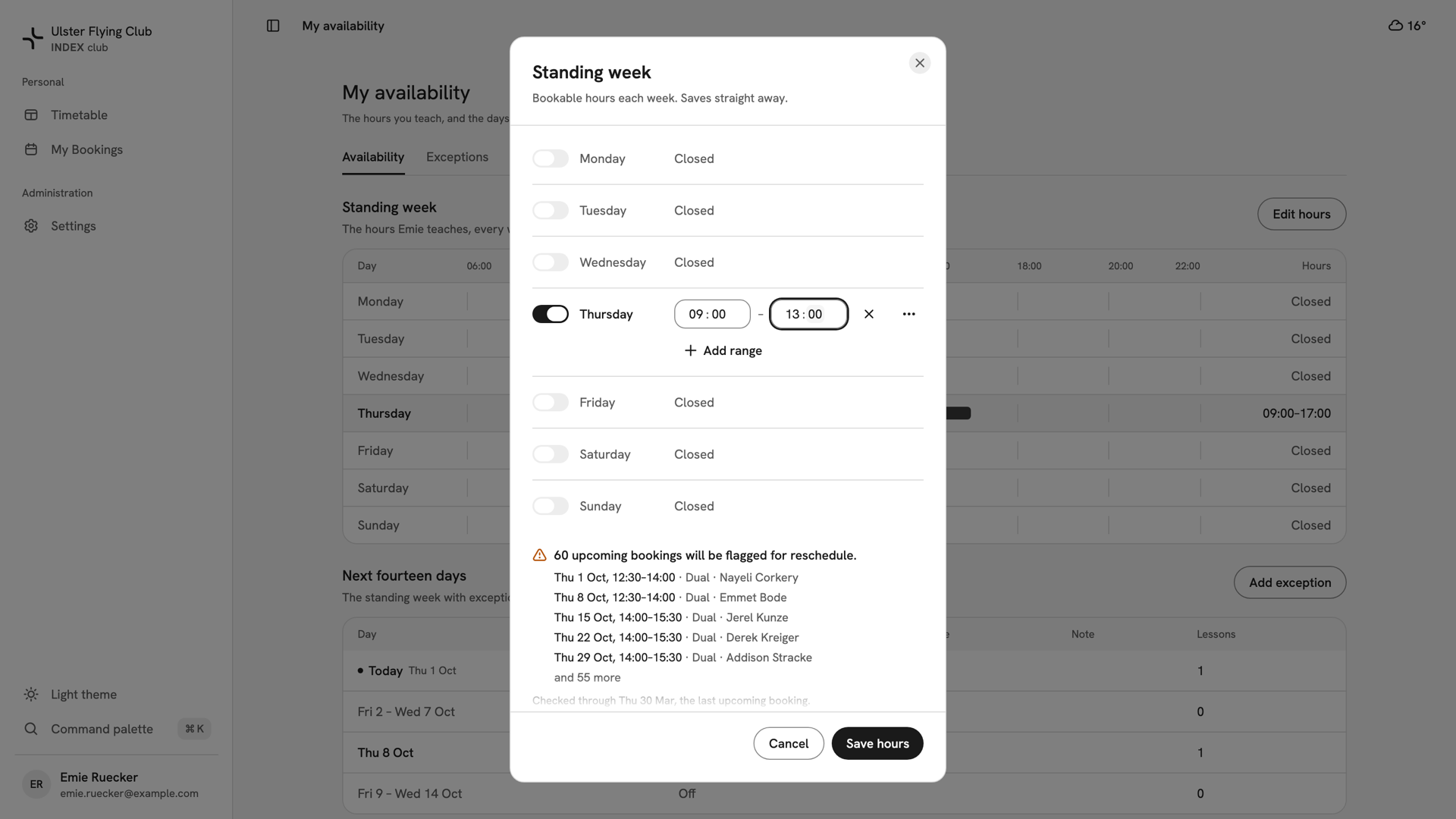
Thursday shortened to 13:00, not saved: the drawer warns that 60 upcoming bookings would be flagged and lists Nayeli Corkery's lesson first. Add a one-off change
Press Add exception. Choose Closed to take time away or Open extra to add it, and set Start and End. Under Days, press Choose days… and pick one or more days. Add a Note to say why.
Only Closed can flag lessons for reschedule.
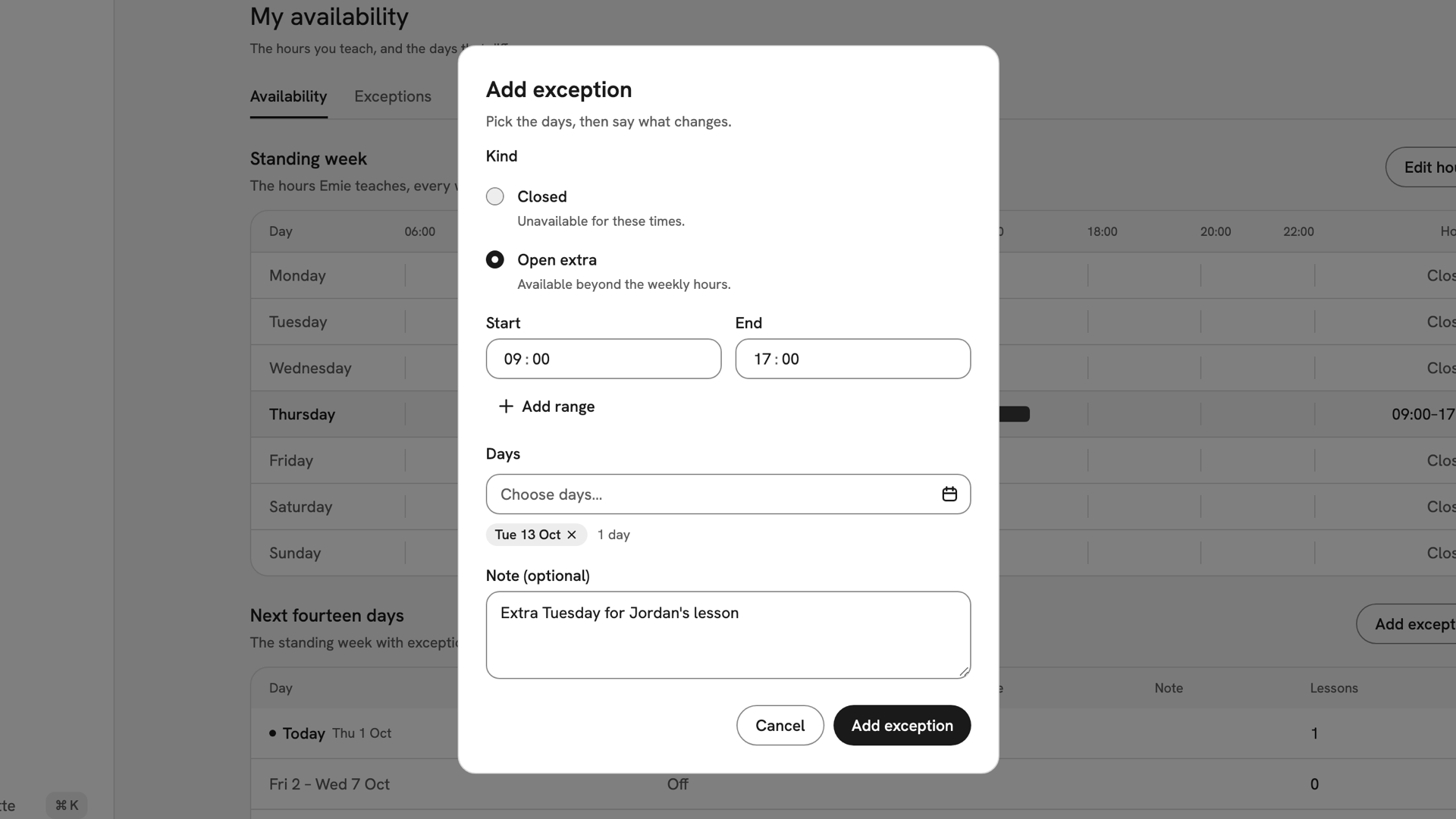
An Open extra exception from 09:00 to 17:00 on Tue 13 Oct, noted 'Extra Tuesday for Jordan's lesson'. Confirm the exception
Press Add exception. "Exception added" appears, and the day shows in Next fourteen days with its new hours. The Exceptions tab lists every exception under Upcoming, Past and All.
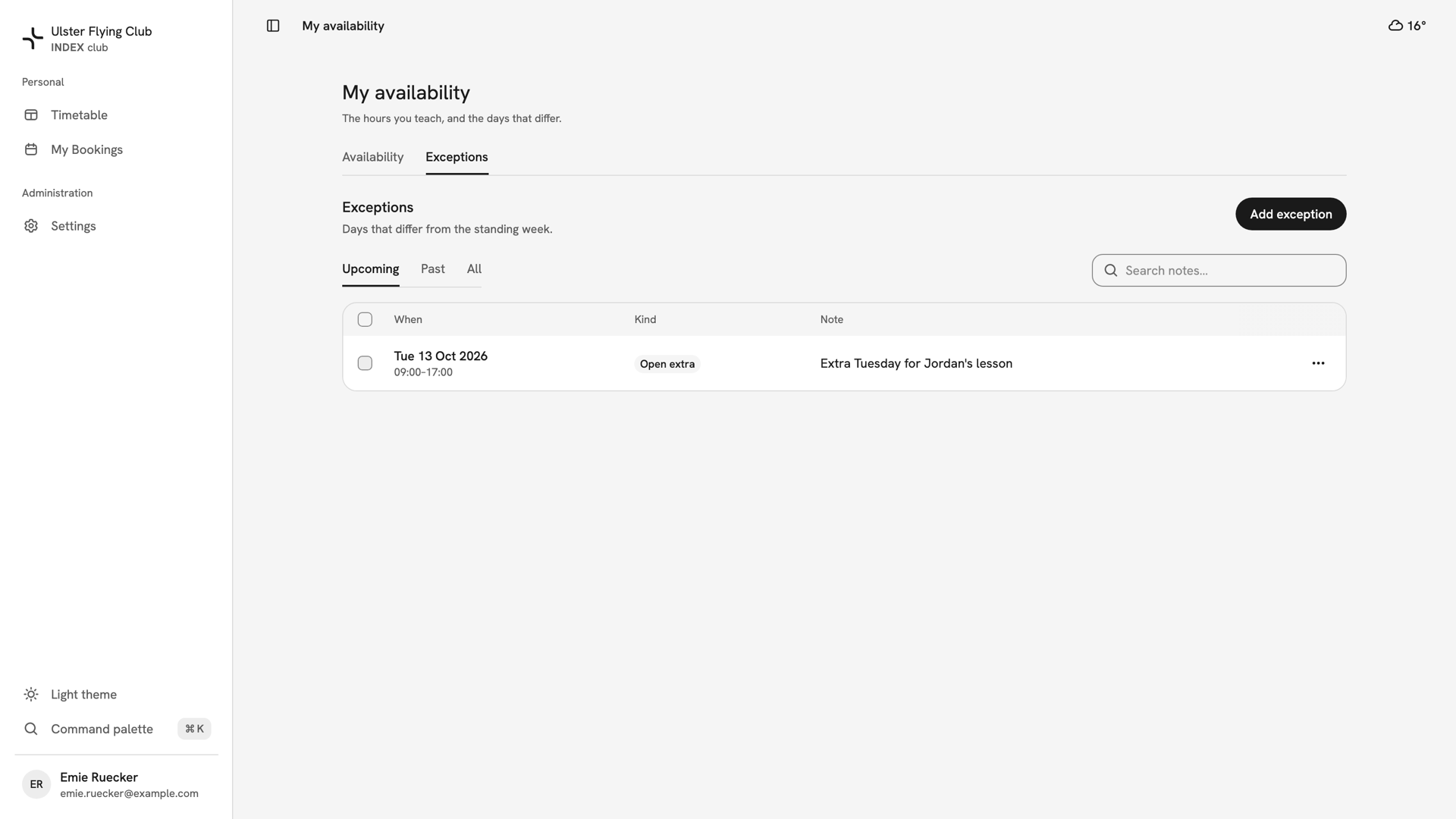
The Exceptions tab on Upcoming: Tue 13 Oct 2026, 09:00–17:00, Open extra, with Emie's note.
After you have set them
The timetable changes straight away, and nobody can book you outside your hours. Stranded bookings carry Needs reschedule until someone moves them. Removing an exception from its ⋯ menu reopens or closes the time again, but does not unflag anything.
If something goes wrong
- "Each range needs an end after its start, and ranges can't overlap." Fix the day it appears under before you save. Save hours stays grey until you change something.
- "Overlaps an exception". That day already has an exception in this window. Edit that one instead of adding another.
- "This day has passed, so the exception can't change." Past exceptions are kept as the record and are frozen.
- A lesson disappeared from your day. It was flagged, not deleted. Look for Needs reschedule on the timetable for that day.
Still stuck? Your club's admins can change your hours for you; see Editing an instructor's availability.
Last updated 1 October 2026