Reading the timetable
What the day board shows, how much of it your role sees, and how to move between days.
The timetable is INDEX Club's home page: every aircraft, instructor and classroom for the day, with bookings drawn in place.
Before you start
- Sign in first. See Signing in.
Reading the board
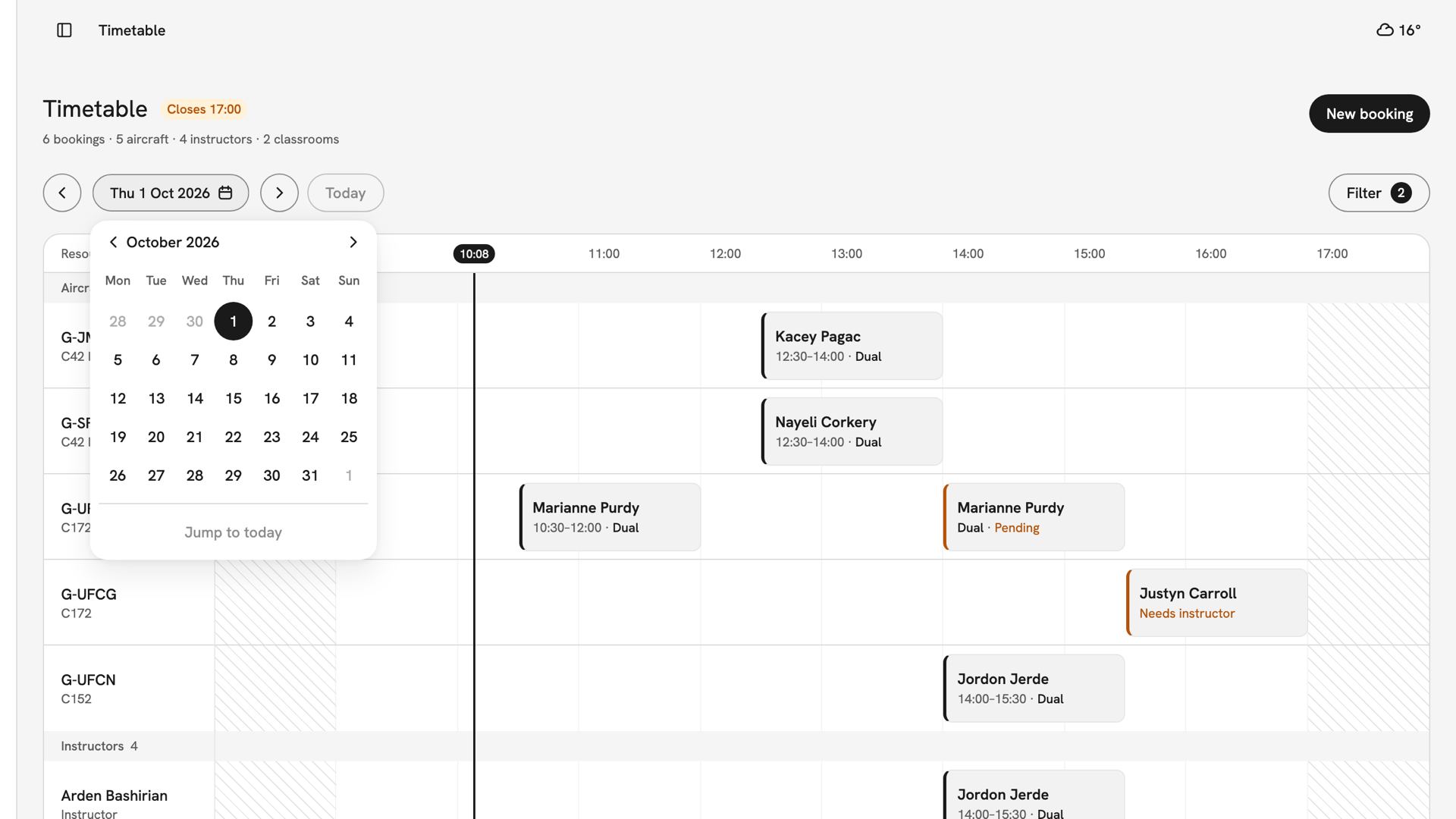
Hours run left to right and each resource has a row, grouped as Aircraft, Instructors and Classrooms. Read along a row to see when one aircraft is free, or down a column to see what is free at one time. On today, a black line marks the current time.
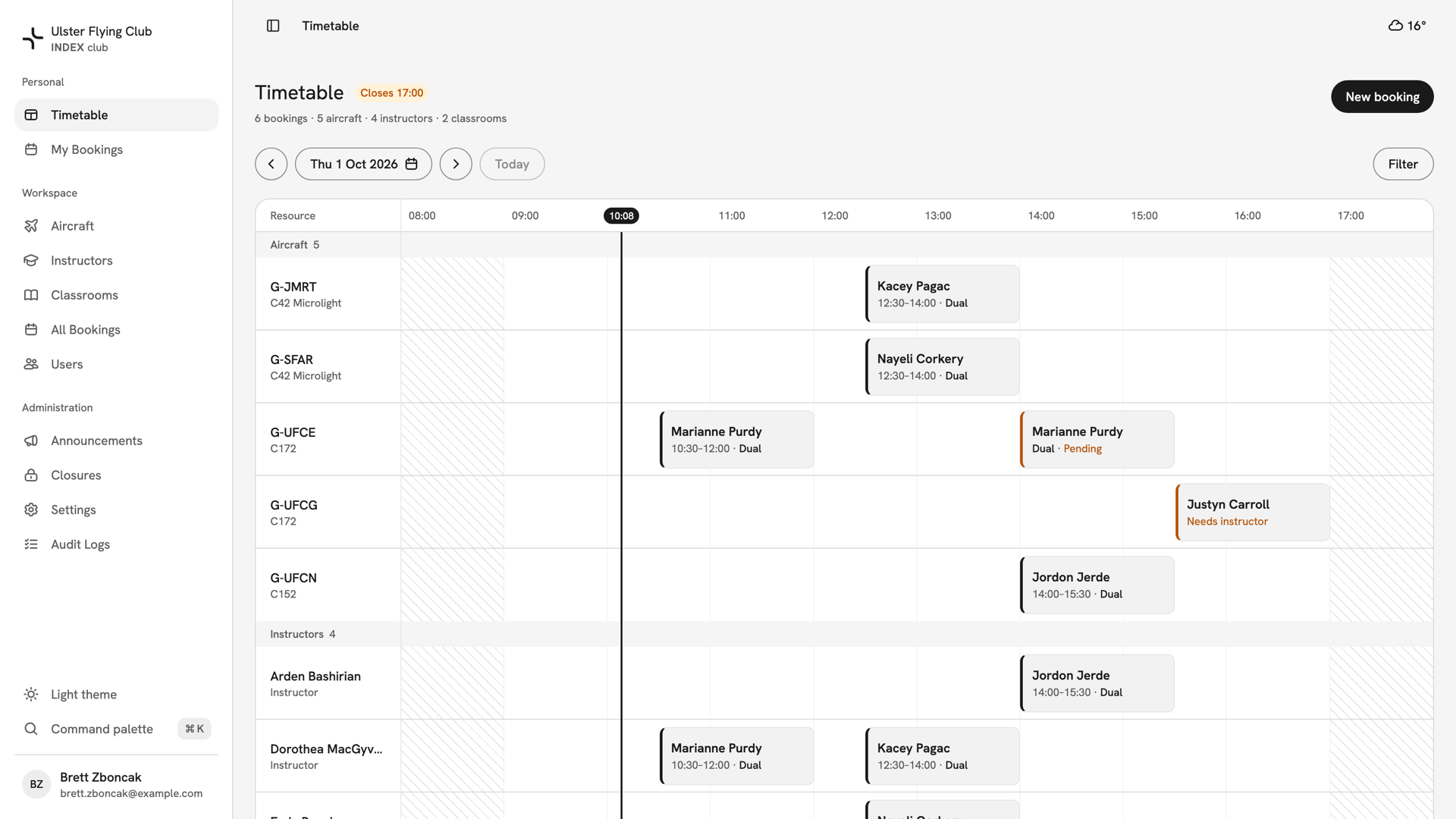
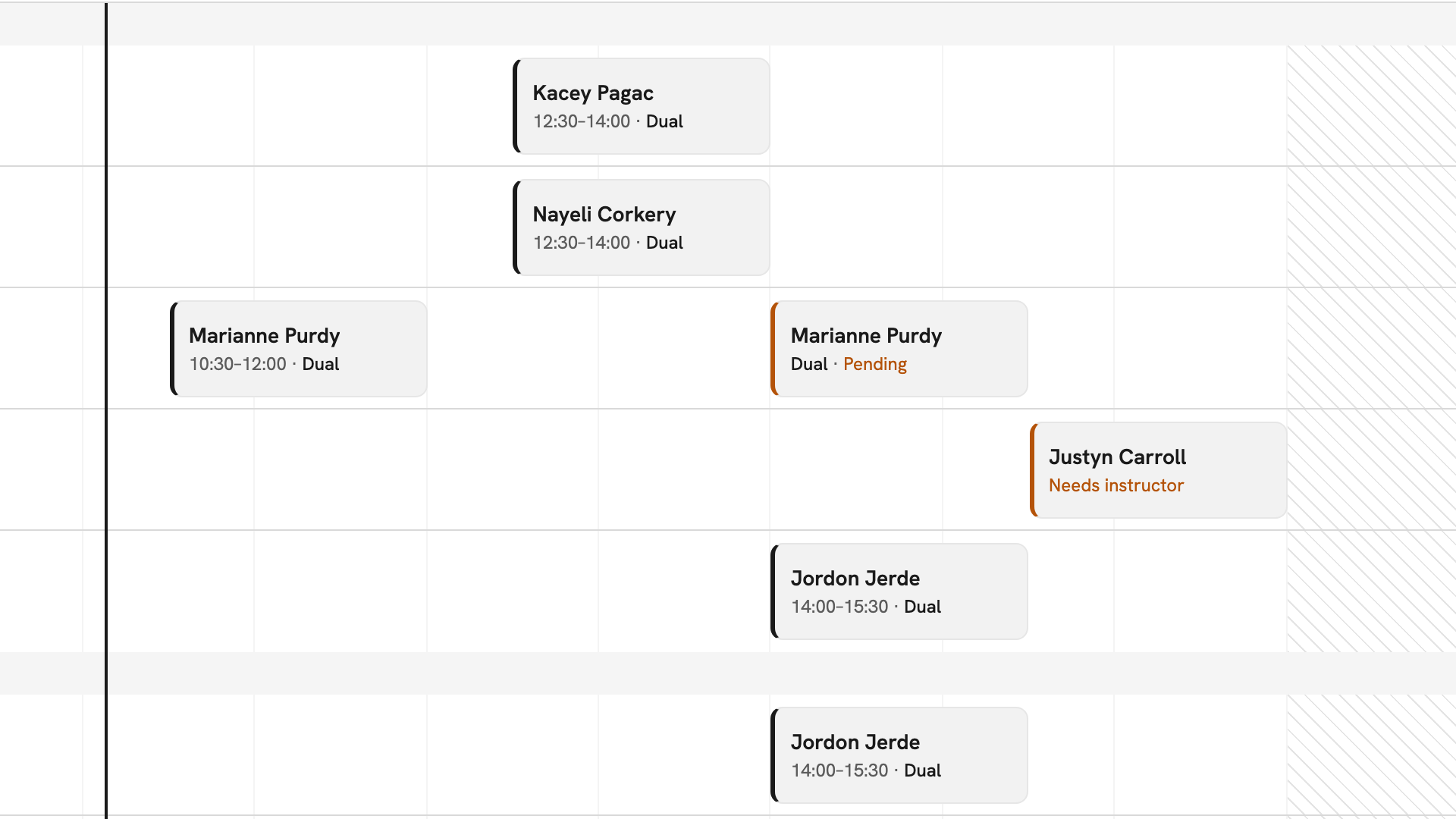
Each block names the member, then the time and type. Grey hatching means the resource is shut: outside its hours, in maintenance, or covered by a club closure.
Booking states
A confirmed booking has a black edge and shows no status. A block turns amber and says what is needed only when someone has to act:
- Pending: a request waiting for the club to approve it.
- Needs instructor: the instructor seat is open for an instructor to claim.
- Needs sign-off: the window has passed and nobody has recorded the outcome.
Finished bookings fade, and a weather cancellation or no-show is struck through. Cancelled bookings and bookings waiting to be rescheduled are not on the board.
What your role sees
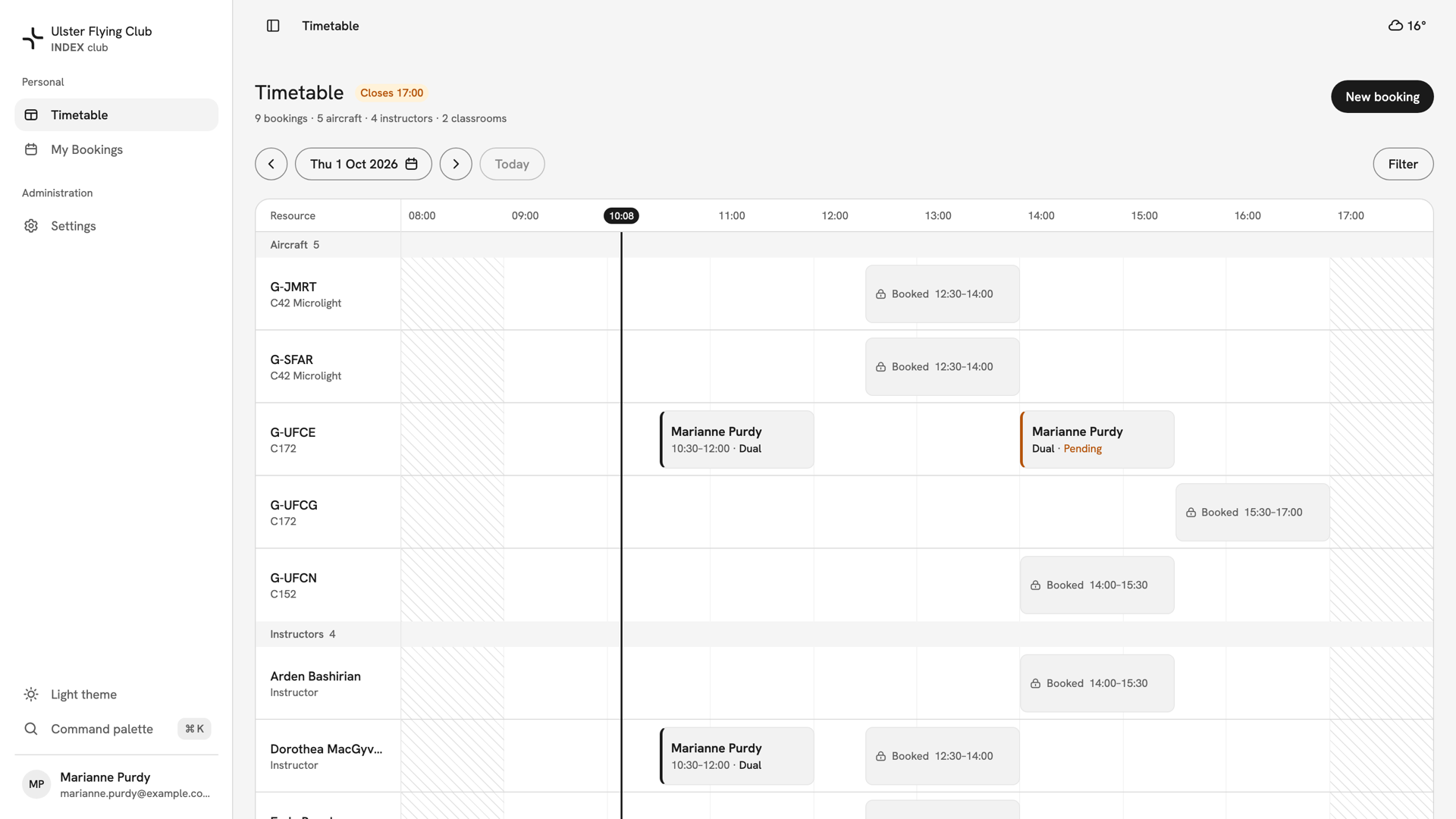
Your own bookings always show in full. Staff see every booking in full. Instructors see other bookings' names, types and times, but not their notes. Students see other members' slots as grey Booked blocks with a padlock, with no name or type.
Comparing two resources on a phone
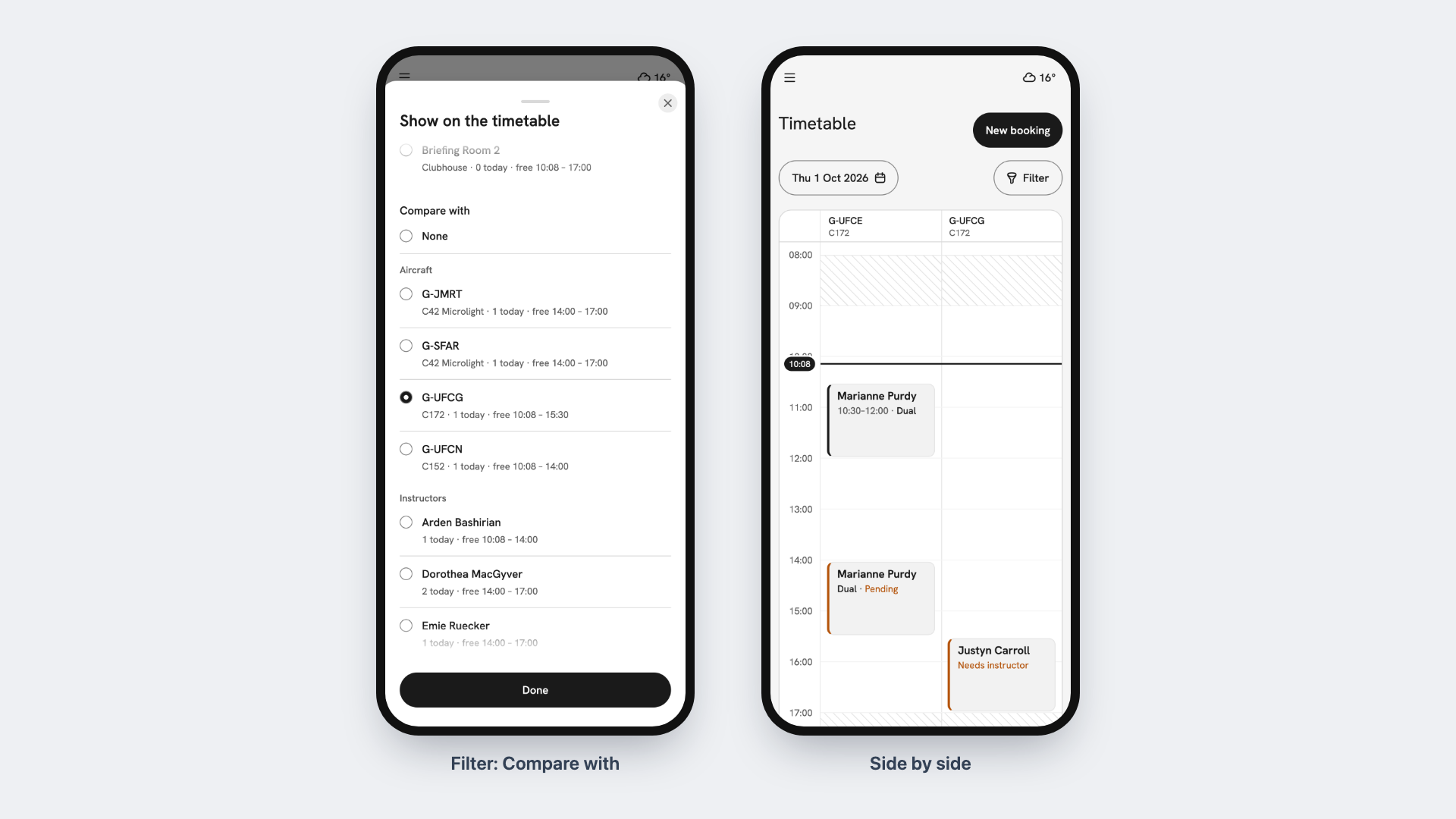
To check whether an aircraft and an instructor are both free, press Filter and pick the second one under Compare with. The day splits into two columns, named at the top. Choose None to go back to one. Comparing resets when you next open INDEX Club.
Moving between days
The arrows step a day at a time, and Today comes back to today. Press the date for a calendar with Jump to today. Filter hides rows, and its button counts how many are hidden.
Opening a booking
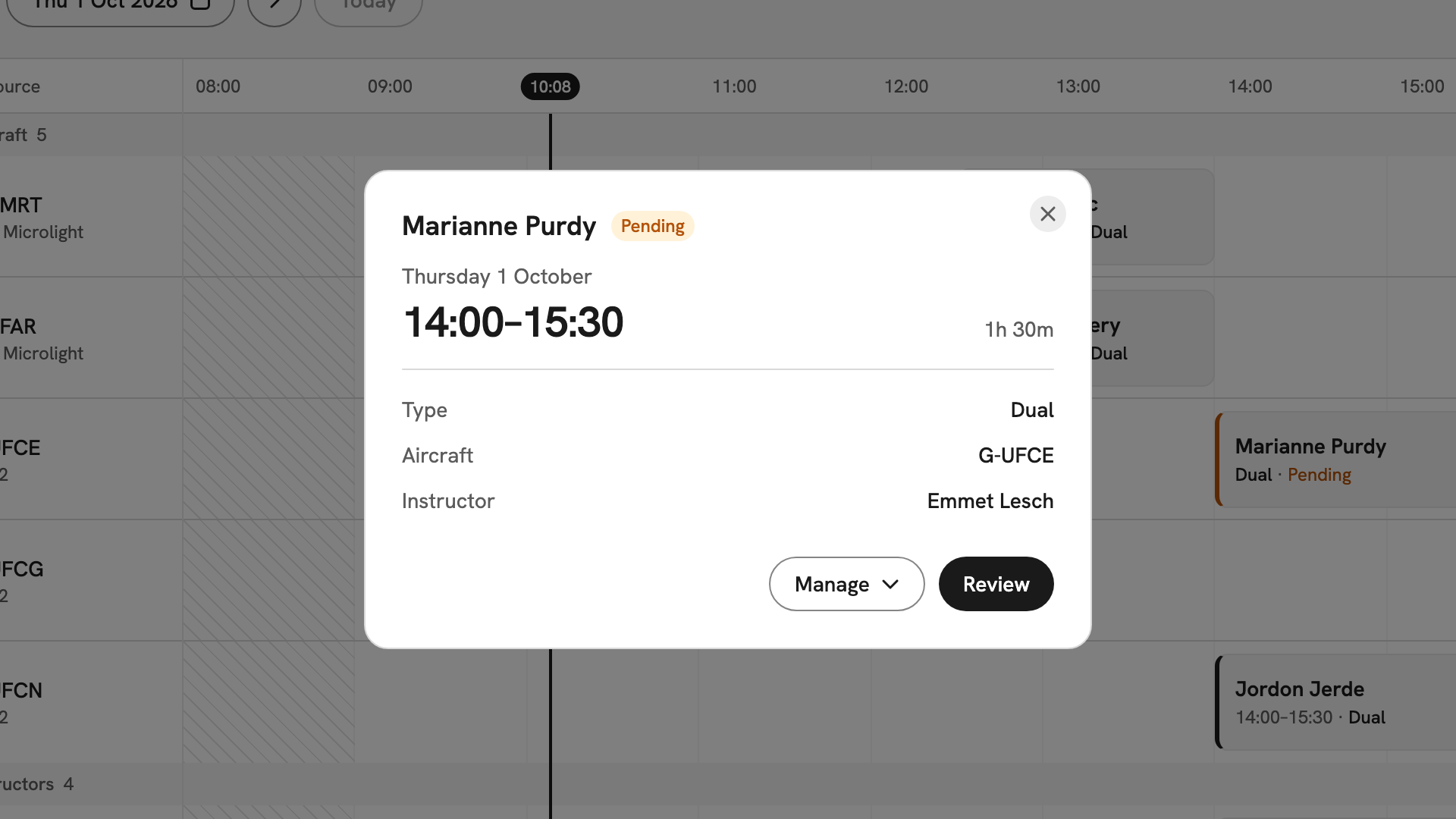
Press a block you can see in full to open its details. The panel shows the day, window and who is involved. The main button is the next thing the booking needs, such as Review or Sign off. Manage holds the rest, including changing or cancelling it.
After you have read it
To take a slot, see Creating a booking. To act on a request, see Approving a booking request.
If something goes wrong
- Half the board is missing. The filter is hiding rows. Open Filter and press Reset.
- "Nothing to show". Your filter hides every resource. Press Clear filter.
- "Nothing booked" for the day. No resource is open that day. Press the button to go to the next day, or ask an admin who is available when.
- A booking you know about is missing. Cancelled and needs-reschedule bookings are not drawn. Find them in Your own bookings.
- "Couldn't load the timetable". The day did not load. Press retry on the message.
Still stuck? Your club's admins see every booking in full and can tell you who holds a slot.
Last updated 1 October 2026