Retiring an aircraft
Taking an aircraft out of service without losing its history, from the ⋯ menu to bringing it back.
Take an aircraft out of service while keeping its record and history. It takes about a minute, and you can bring it back at any time.
Before you start
- Owner, admin or instructor-admin role. Nobody else can retire an aircraft.
- A lasting change, not maintenance. For work with an end date, close the aircraft's hours instead; see Aircraft availability and maintenance.
Taking it out of service
Open the aircraft's actions
Open Aircraft, press the registration and press ⋯ beside Edit in the header. The menu holds Deactivate aircraft and, in red, Delete aircraft. The ⋯ on each row of the fleet list has the same actions.
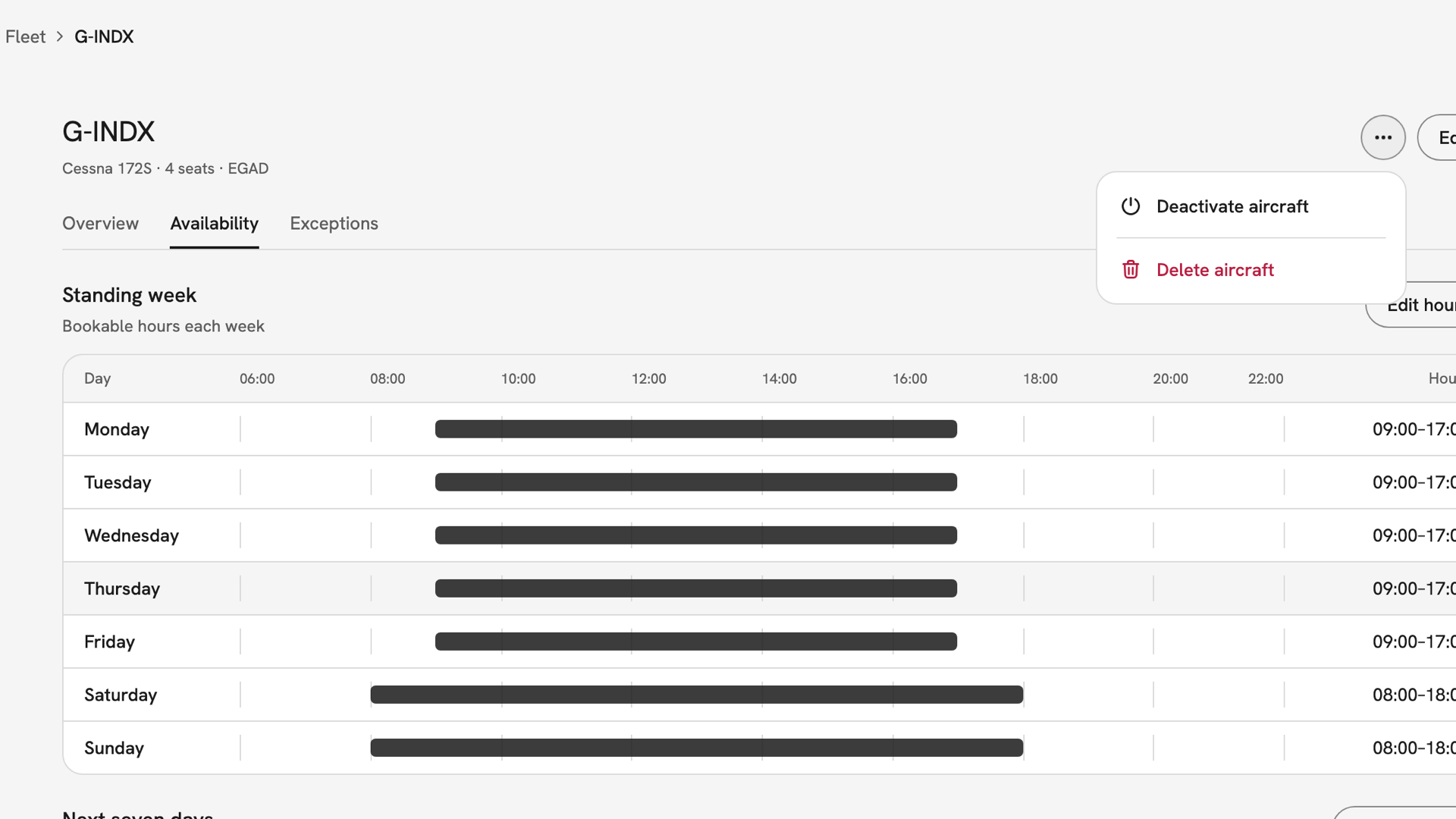
G-INDX's ⋯ menu open in the record header: Deactivate aircraft, then Delete aircraft in red below a line. Check what it will flag
Press Deactivate aircraft. The dialog reads "No new bookings until reactivated. Flagged bookings stay flagged." It counts the aircraft's upcoming bookings and names them, or says "No upcoming bookings are affected."
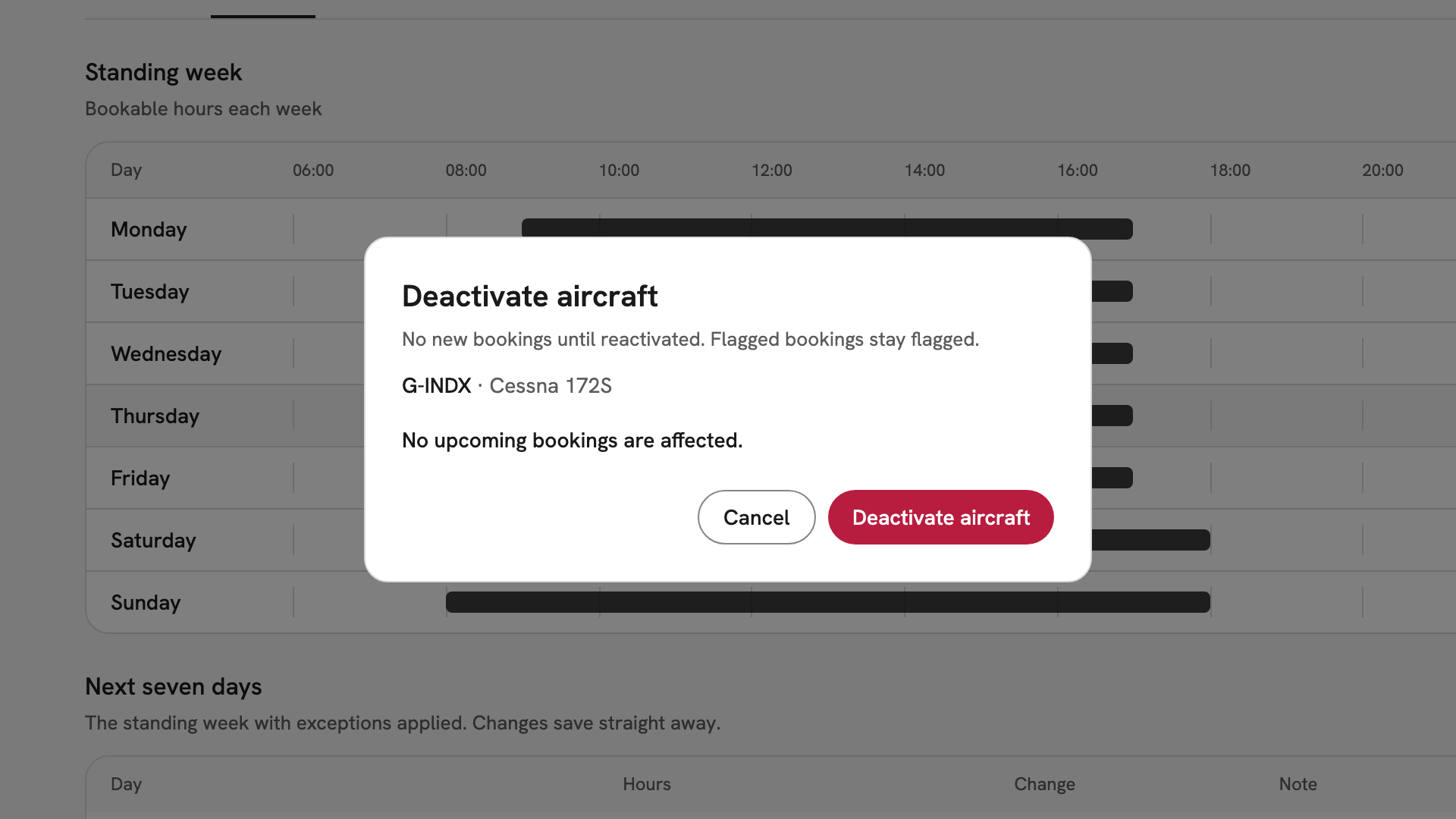
The Deactivate aircraft dialog for G-INDX · Cessna 172S, with no upcoming bookings affected. Deactivate it
Press Deactivate aircraft in the dialog. INDEX Club shows "G-INDX deactivated", with the number of bookings flagged if there were any. The record carries an Inactive chip, and the aircraft leaves the timetable and the booking form. Its hours stay set for when it returns.
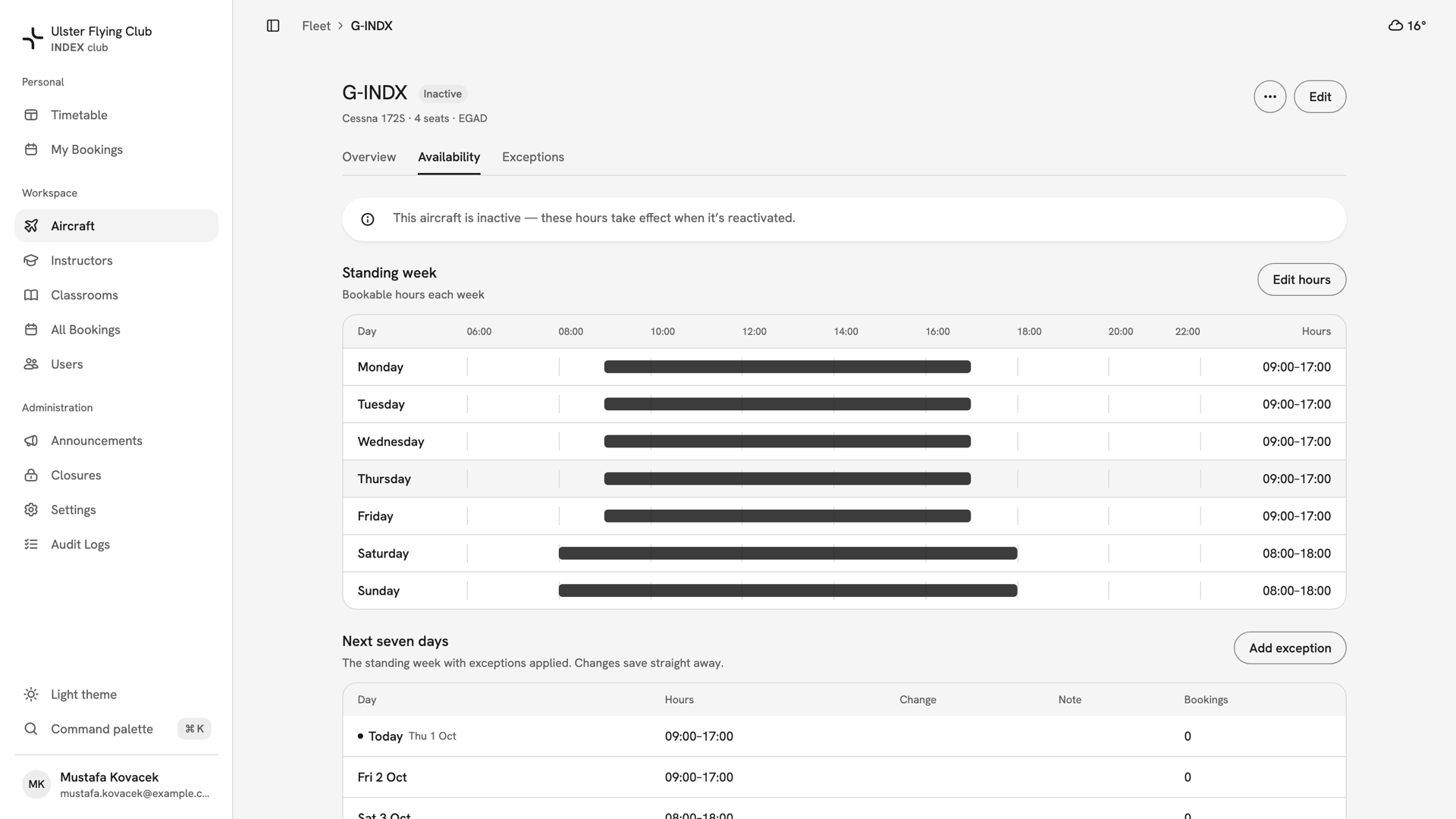
G-INDX after deactivation: the Inactive chip beside the registration, and a notice that its hours wait for reactivation. Bring it back
Press ⋯ and Reactivate aircraft. The dialog says how many bookings the deactivation flagged are still flagged, or "Bookings open again." Press Reactivate, and the aircraft is back on the timetable with its old hours.
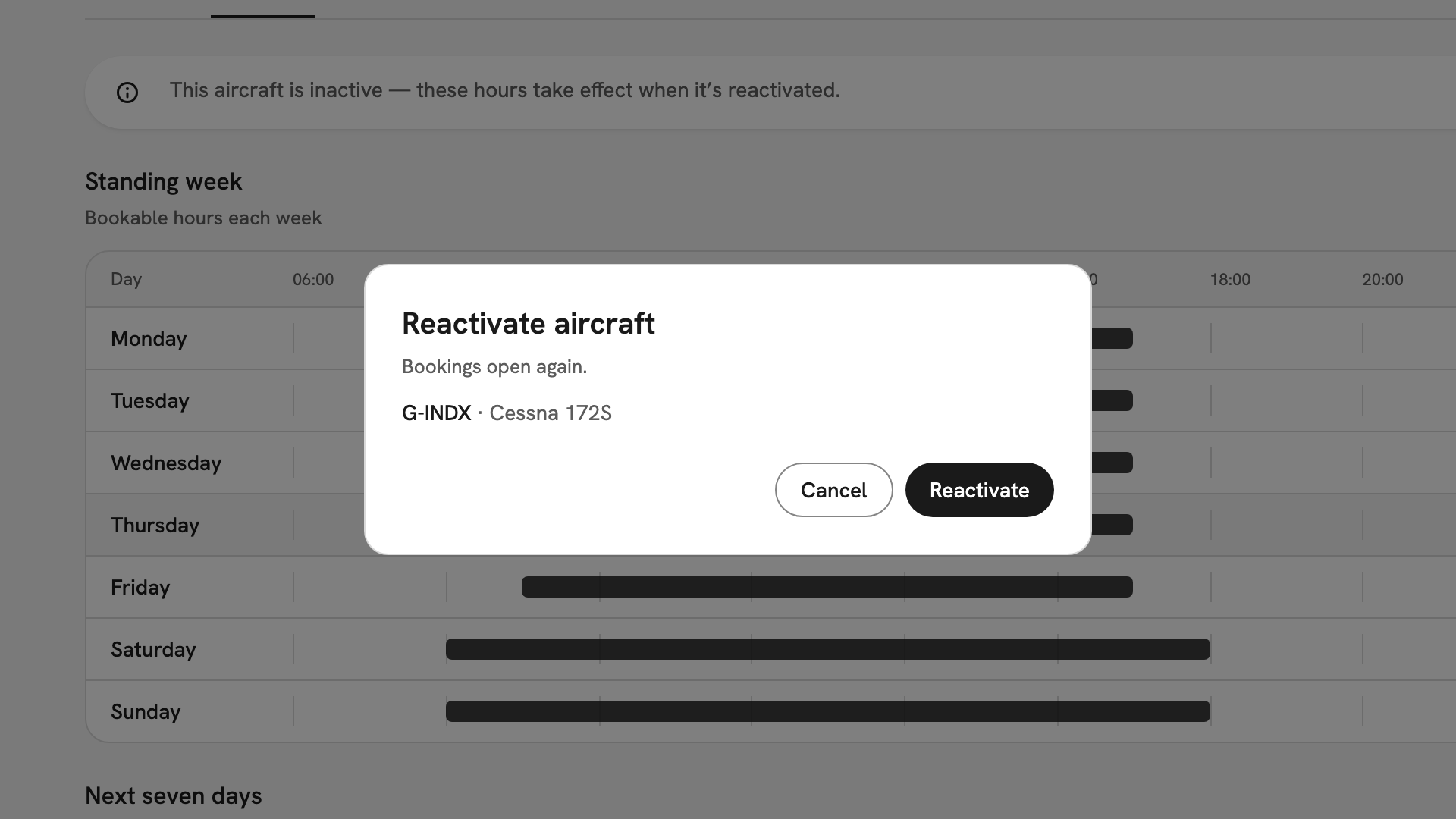
The Reactivate aircraft dialog for G-INDX, reading Bookings open again, with Cancel and Reactivate.
After you have retired it
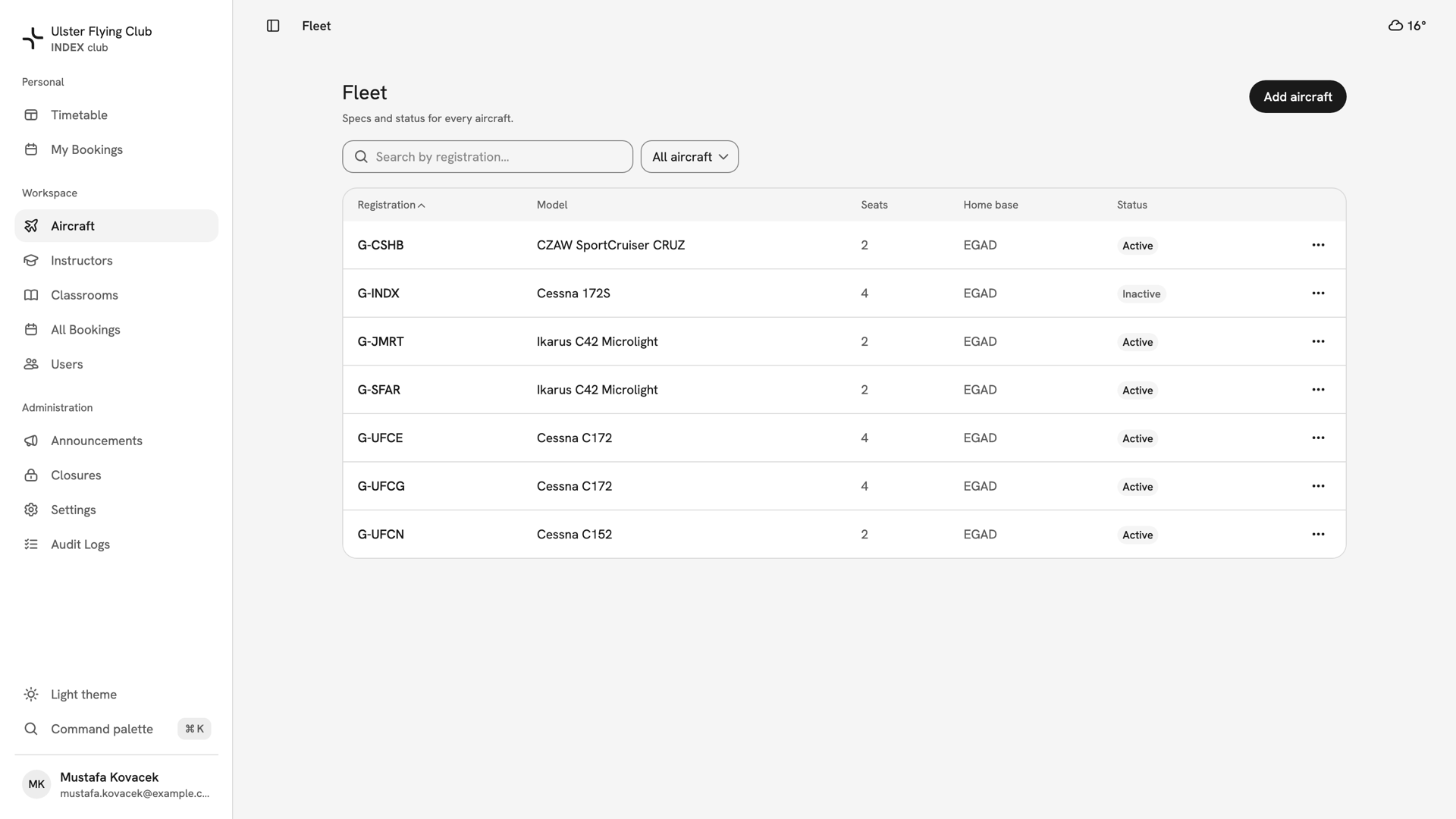
The aircraft keeps its specs, notes, hours and registration, and its past bookings still show its name. It stays on the fleet as Inactive. Use Delete aircraft only for a record created in error: an aircraft with booking or flight history is archived rather than removed.
If something goes wrong
- There is no ⋯ menu on the record. Only owners, admins and instructor-admins can retire an aircraft.
- Members say their booking disappeared. It was flagged for reschedule when you deactivated. Find it in All Bookings and move it.
- "That registration is already in the fleet" when adding it back. The retired record still holds it. Reactivate that record instead.
- "This aircraft has already been deleted." Someone else removed it while you had the page open. Reload the fleet.
Still stuck? Your club's owner can retire, restore and delete any aircraft.
Last updated 1 October 2026