Announcements
Putting a banner across the top of the app for every member, from writing it to taking it down.
An announcement is a strip across the top of every page, seen by every member. Writing one takes about two minutes.
Before you start
- Permission to manage banners. Owners, admins and Instructor & Admins have it. See Roles and what they allow.
- Something for everybody. An announcement reaches every member in every role. It appears only in the app, with no email and nothing in the bell.
Writing an announcement
Start a new banner
Open Announcements under Administration in the sidebar and press New banner. Inside this page, announcements are called banners. The strip at the top of the dialog previews your banner as you fill it in.
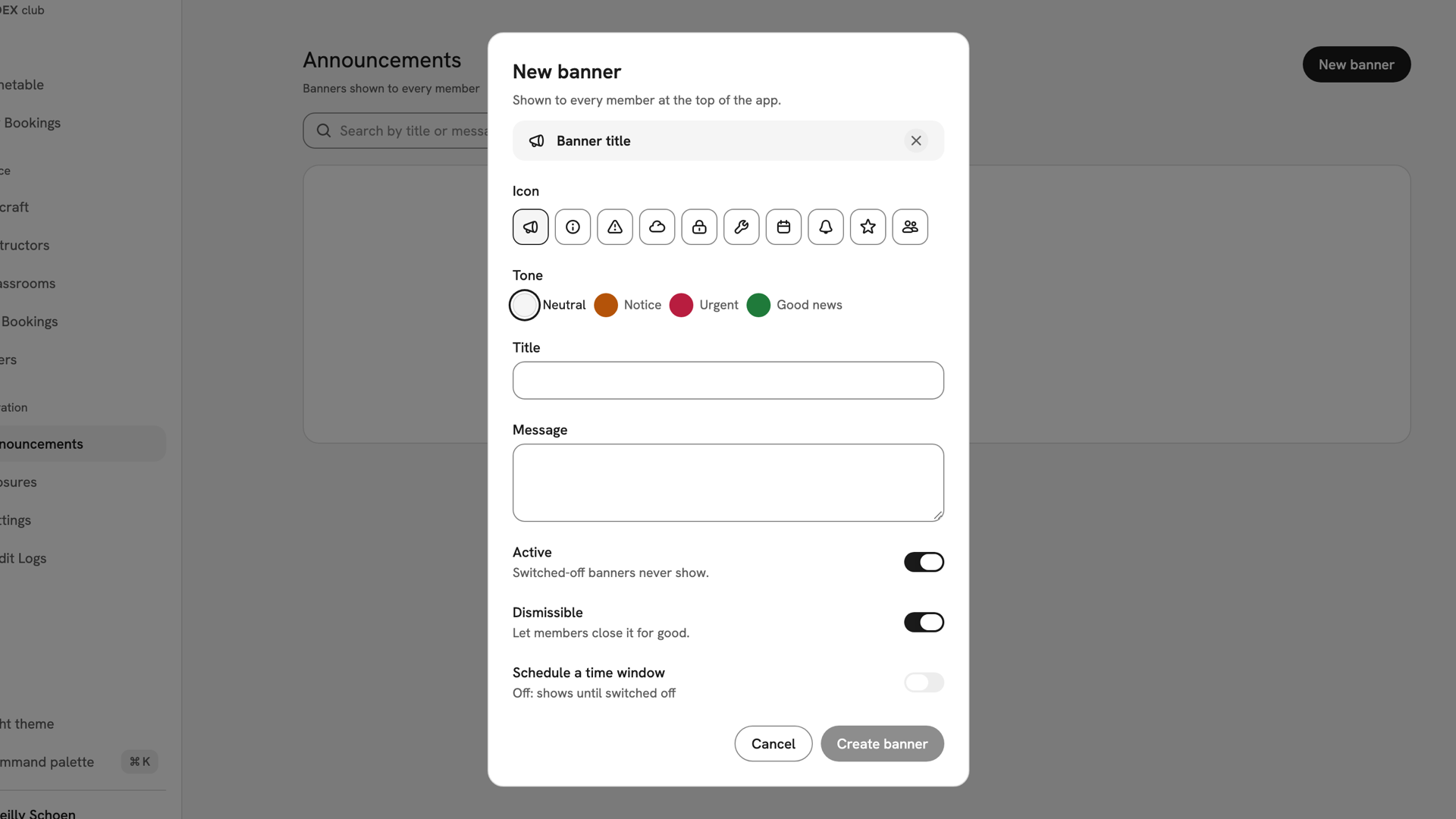
The New banner dialog as it opens, with the preview reading Banner title above the Icon and Tone pickers. Write it
Pick an Icon for what it is about and a Tone for how urgent it is: Neutral, Notice, Urgent or Good news. Type a Title, which is required, and an optional Message. Members see the title in bold, then the message after a dash.
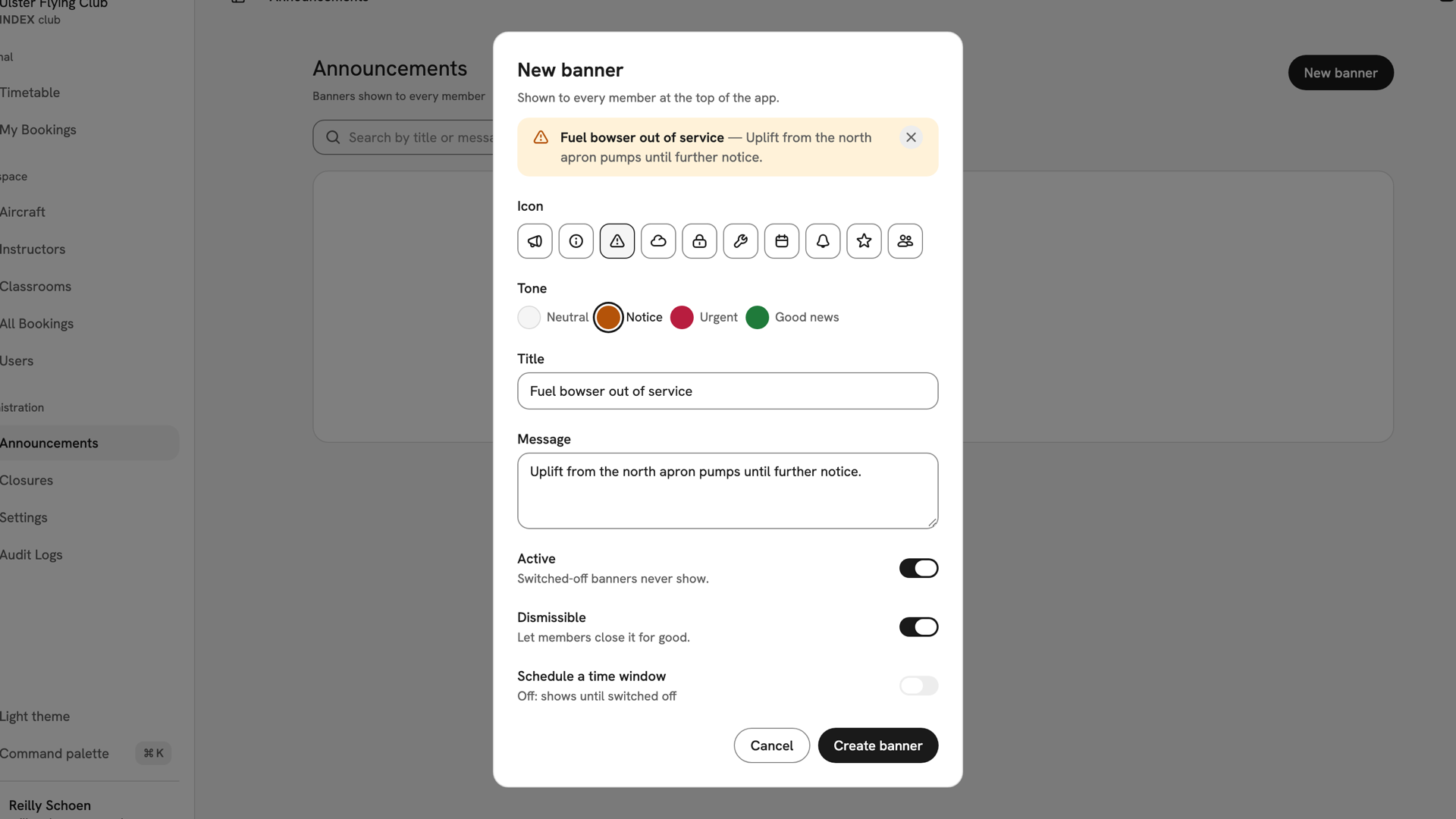
The dialog with the Warning icon, Notice tone and the fuel bowser title and message, matched by the amber preview. Set how it behaves
The defaults suit most announcements. Active is the master switch. Dismissible lets members close it for good. Turn on Schedule a time window to set Starts and Ends; otherwise it shows until you switch it off.
Publish it
Press Create banner. It goes live at once, with no approval. INDEX Club confirms with Banner created, and the new row reads Live and Always on.
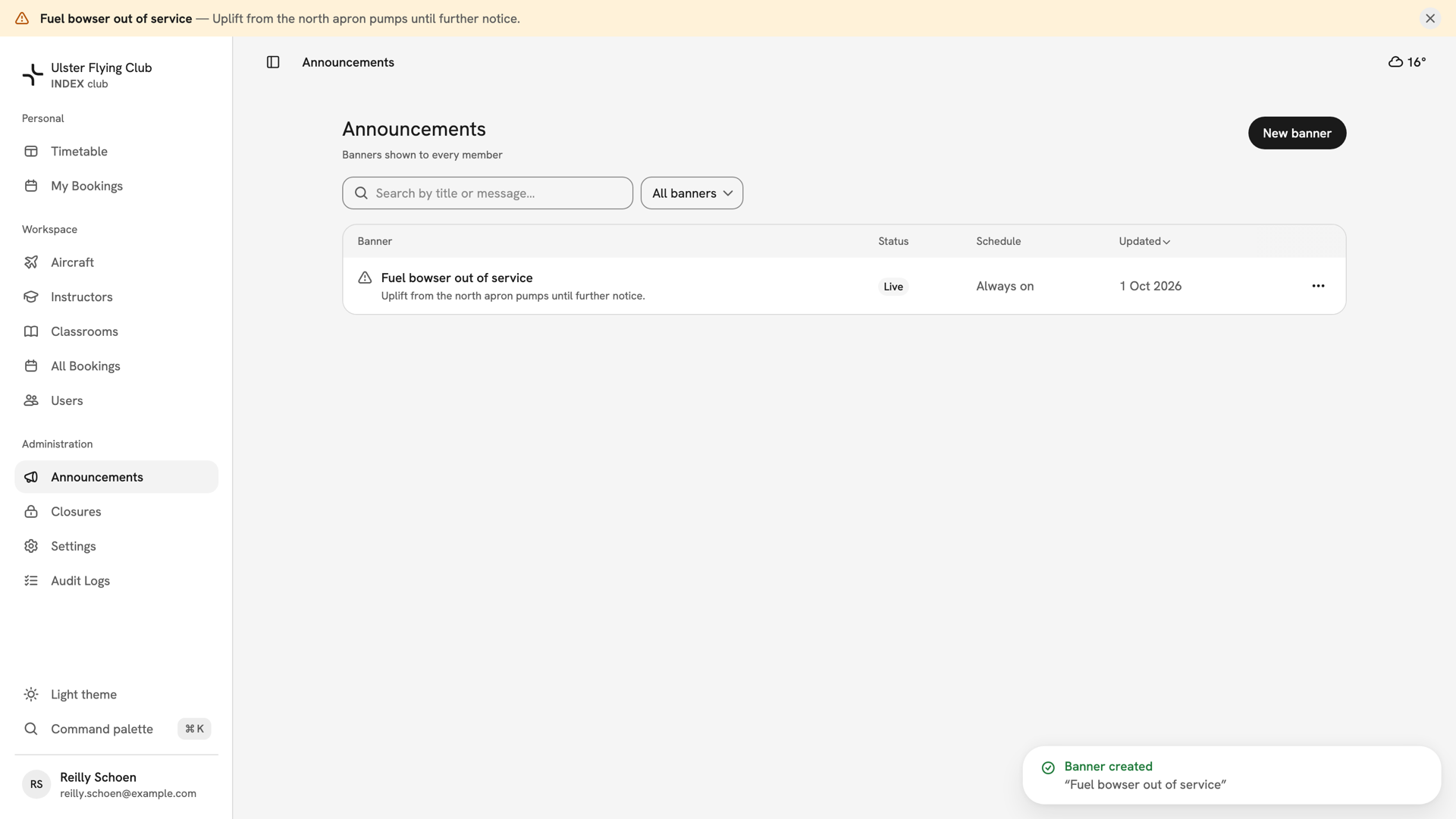
The Announcements table with the fuel bowser banner Live and Always on, and the strip already across the top.
After you have published it
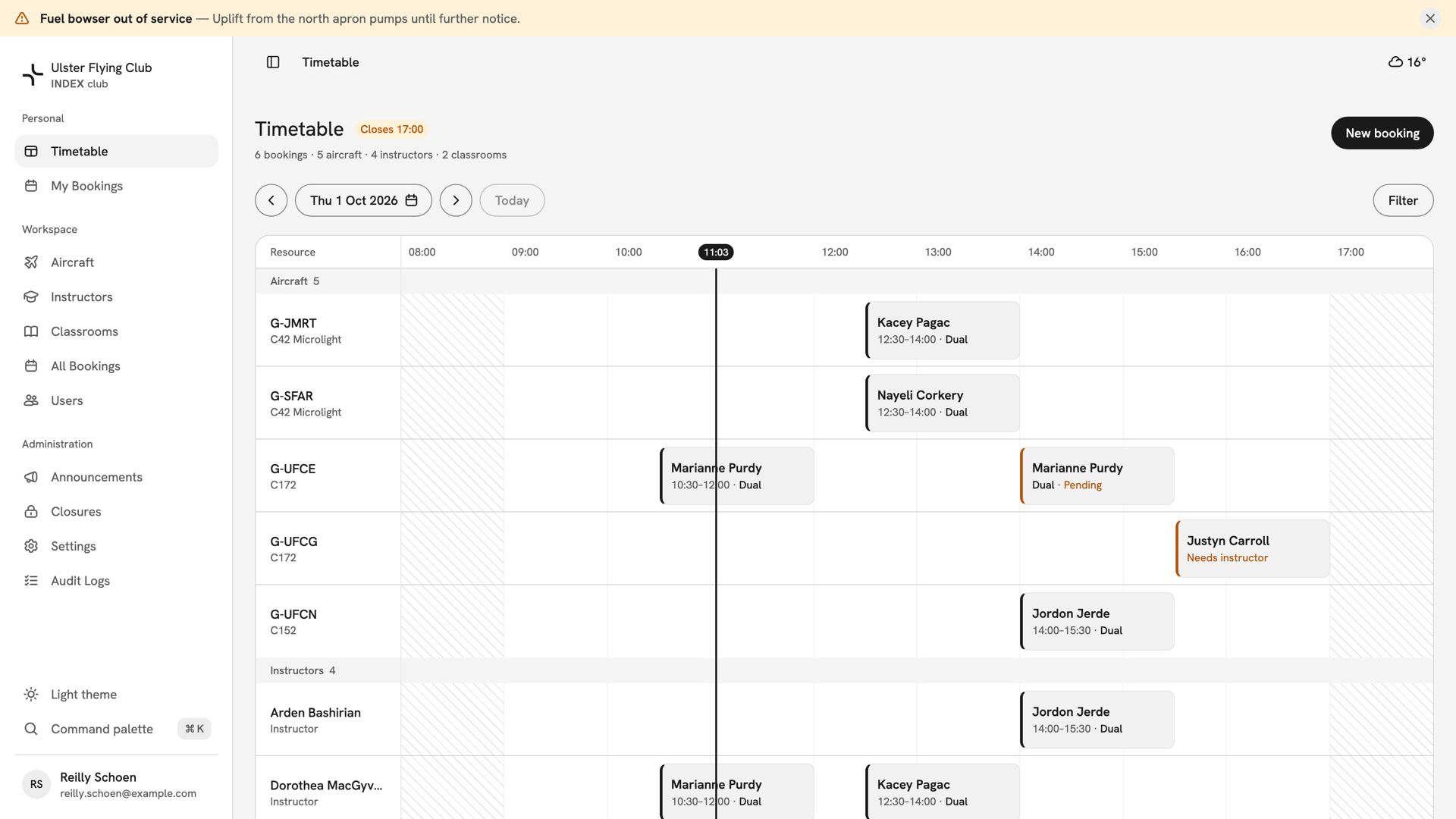
Members see the strip above the sidebar and navbar on every page. To change it, use Edit in the row's ⋯ menu. Deactivate takes it down but keeps it; Delete removes it for good. A closure can raise its own banner: see Closing the club.
If something goes wrong
- Announcements is not in the sidebar. You do not hold Manage banners. Ask your club's owner or an admin.
- Create banner is greyed out. There is no title, or scheduling is on and a date is empty. "End must be after the start." means the window runs backwards.
- A member says they cannot see it. They probably closed it, and dismissal is permanent. Delete it and create it again.
- "Couldn’t save banner". Somebody may have edited it while you had it open. Reload and reapply your change.
Still stuck? Your club's owner can edit or delete any announcement, including one a closure raised.
Last updated 1 October 2026