Editing an instructor's availability
Setting another instructor's teaching hours and days off, from their record to the bookings the change flags.
Set an instructor's teaching hours and days off for them, for example when they are away or have no login. It takes about three minutes.
Before you start
- Owner, admin or instructor-admin role. See Roles and what they allow.
- A word with the instructor. A Self-serve instructor edits the same hours from Your teaching hours, and the last change wins.
Editing their hours
Open their Availability tab
Open Instructors, press the instructor's name and choose the Availability tab. Standing week shows their normal hours. Next fourteen days shows each day with exceptions and club closures applied, and how many lessons it holds.
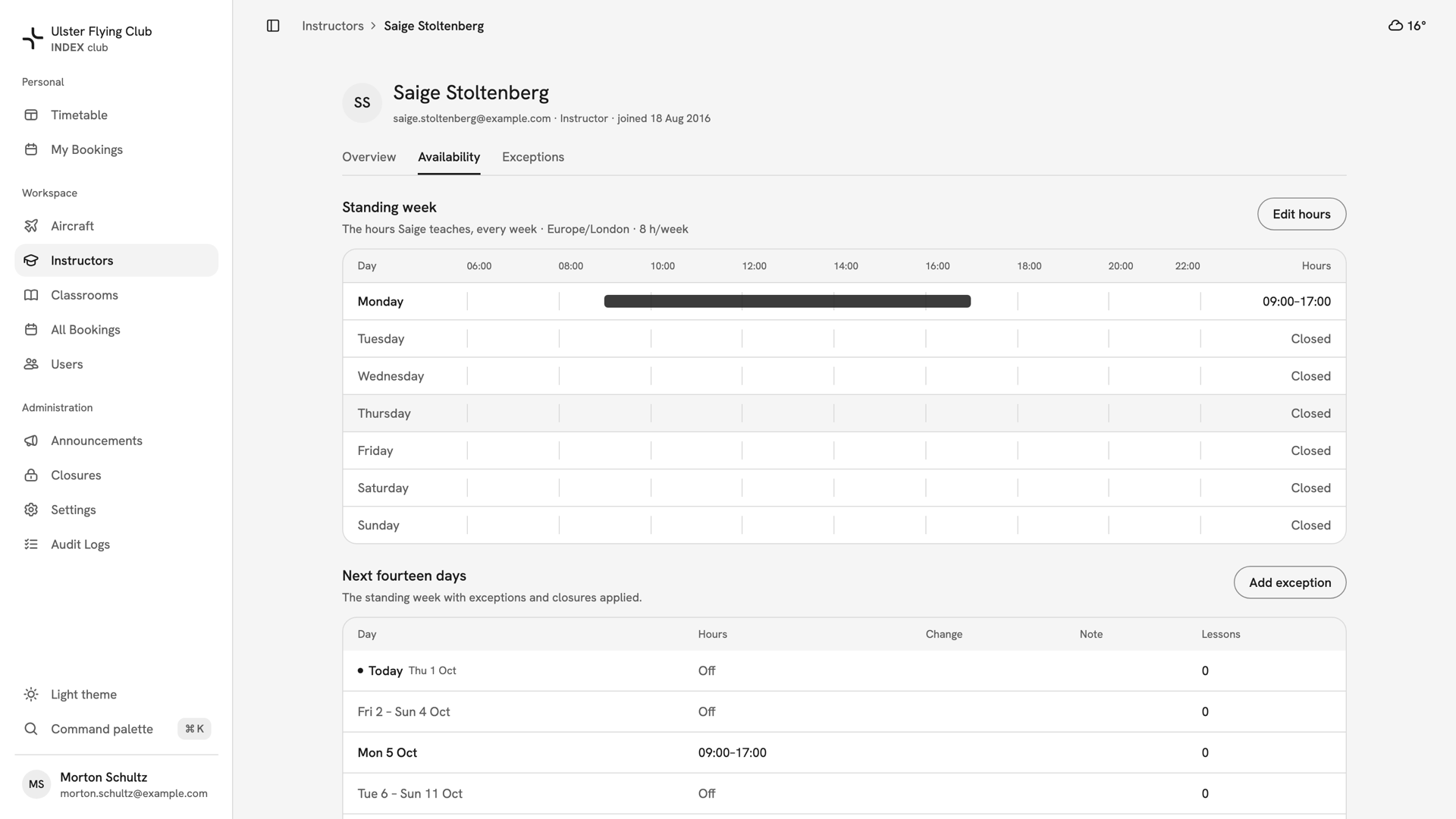
Saige Stoltenberg's Availability tab: Monday 09:00–17:00 as her standing week, and her next fourteen days. Edit the standing week
Press Edit hours. Switch each day on or off and set its times; Add range gives a day a second range. Copy times to all open days, in a day's ⋯ menu, repeats one day's times. Press Save hours.
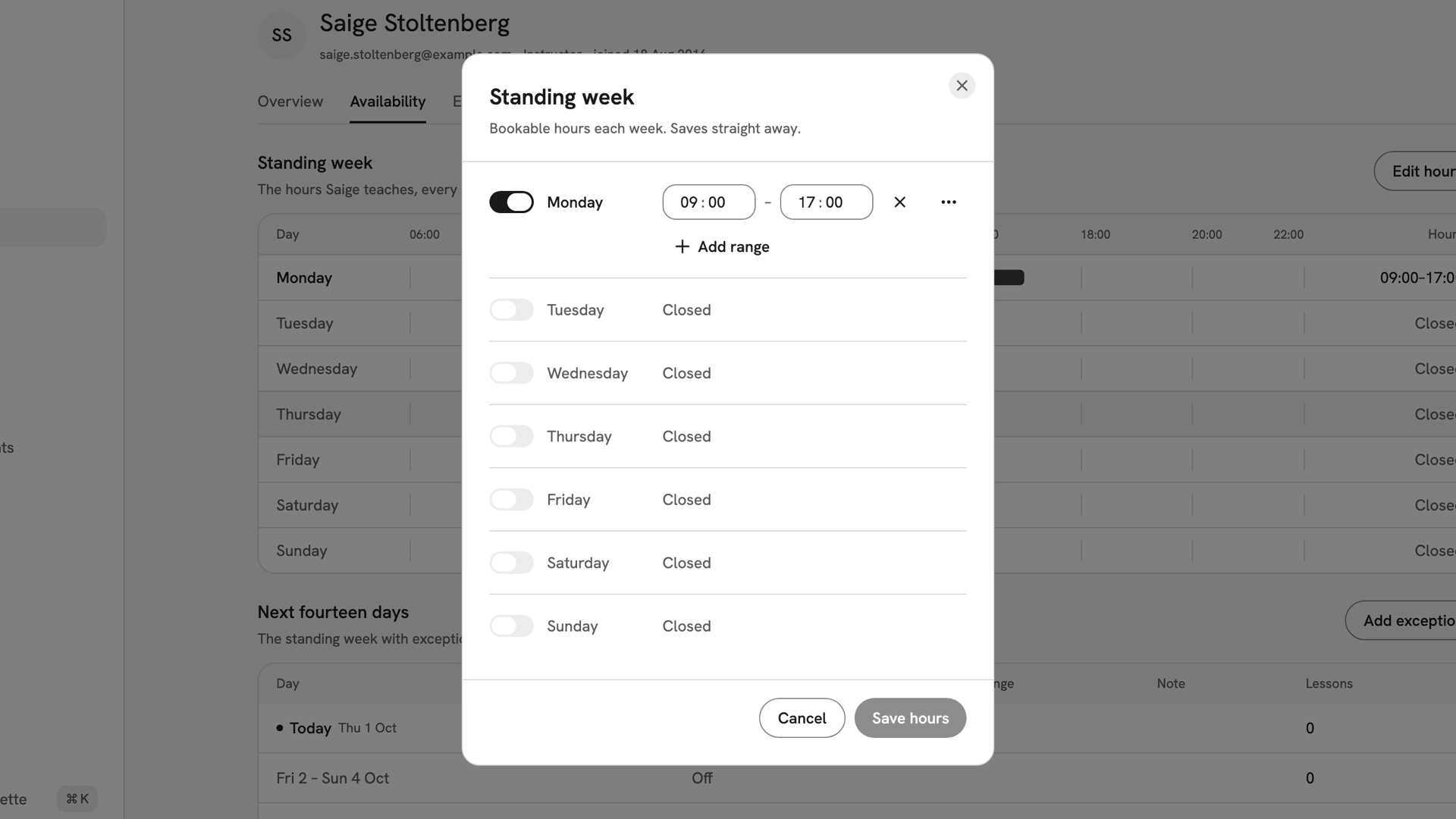
The Standing week dialog for Saige Stoltenberg: Monday on from 09:00 to 17:00, every other day Closed. Add an exception
Press Add exception. Choose Closed for time off, or Open extra for hours beyond the week, and set Start and End. Press Choose days… and pick one or more days. Add a note if it helps; the instructor sees it.
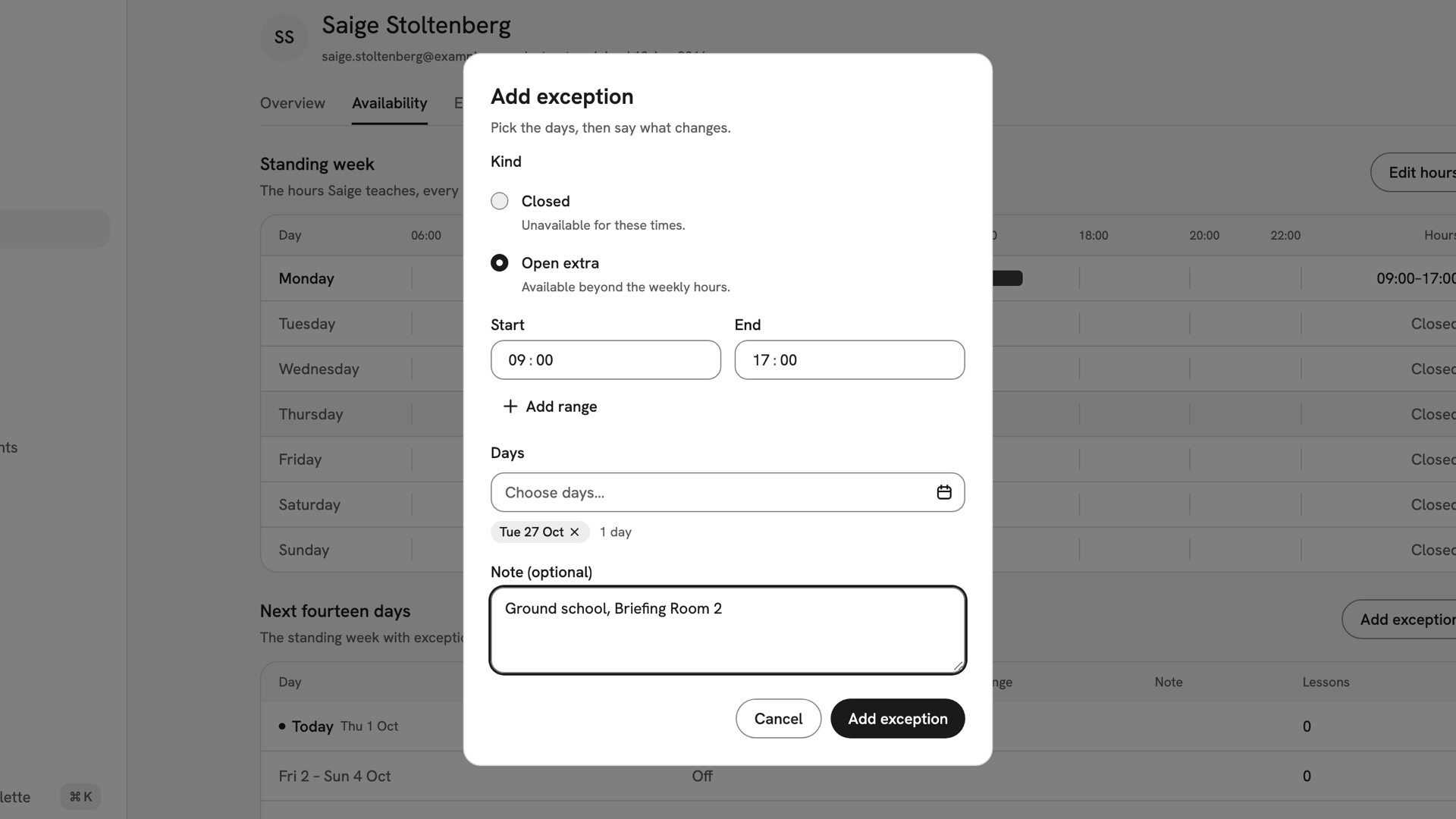
Open extra for Saige Stoltenberg on Tuesday 27 October, 09:00 to 17:00, noted Ground school, Briefing Room 2. Check what it flags, then save
For Closed, the dialog lists the lessons inside those hours, such as "1 upcoming booking will be flagged for reschedule". Press Add exception. INDEX Club shows Exception added, and the day appears on the Exceptions tab.
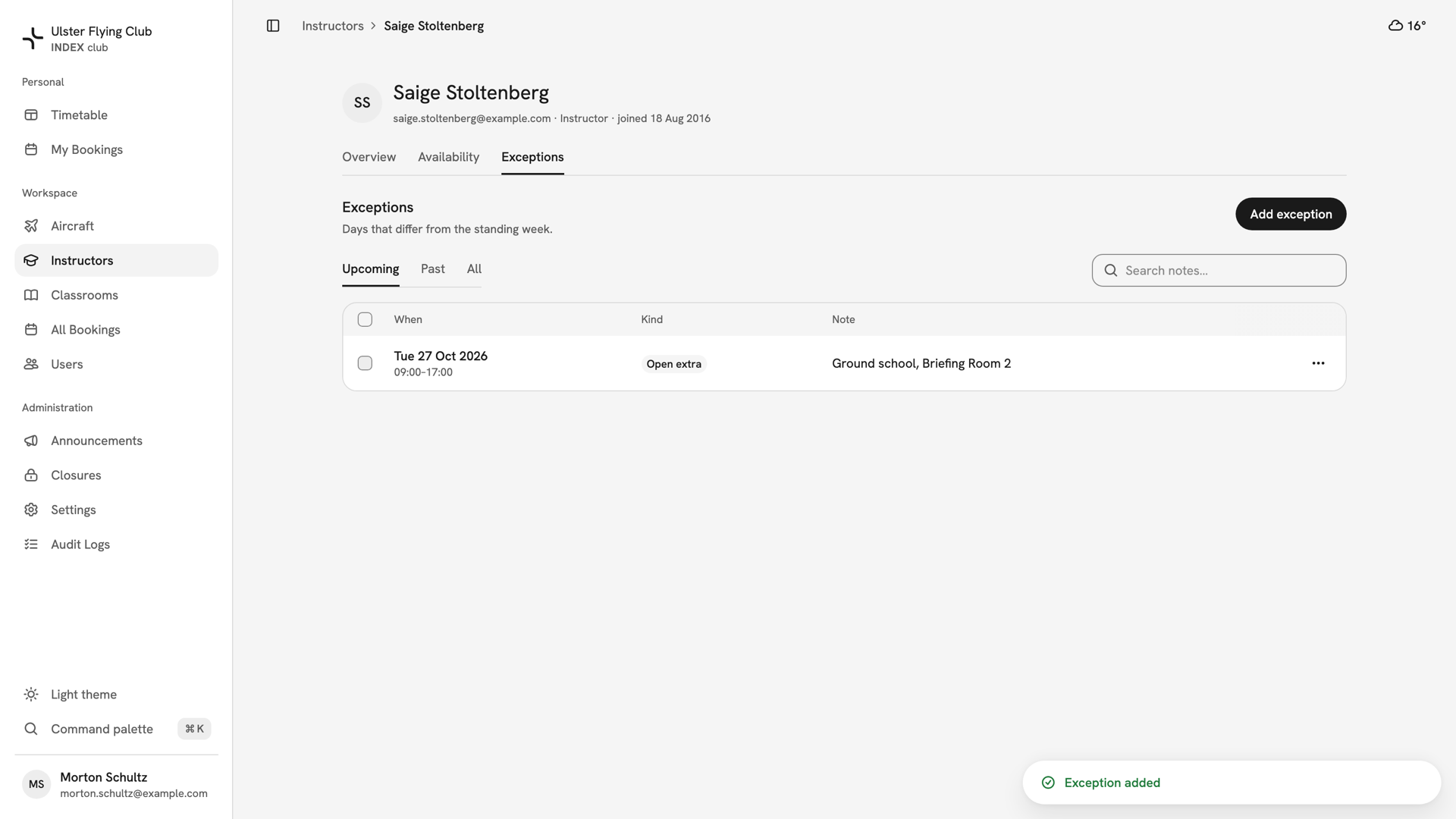
Saige Stoltenberg's Exceptions tab after saving: Tue 27 Oct 2026, 09:00–17:00, Open extra, with Exception added below.
After you have changed them
The timetable changes at once, and nobody can book the instructor outside their hours. Caught lessons are marked Needs reschedule and still need moving by hand. To change or remove an exception, use the ⋯ on its row under Exceptions. Tell the instructor yourself when their hours change.
If something goes wrong
- The add button stays disabled. No day is picked, a range ends before it starts, or two ranges overlap.
- "Overlaps an exception". That day already has one in that window. Edit the existing exception instead of adding a second.
- The instructor changed it back. A self-serve instructor edits the same hours, and the last change wins. Agree who owns the week.
- A day reads Club closed. A club closure covers it, whatever their hours. See Closing the club.
Still stuck? Your club's owner and admins can edit any instructor's hours and see every booking a change flagged.
Last updated 1 October 2026