Booking a trial flight
Putting a visitor in an aircraft with an instructor, from the enquiry to the slot on the timetable.
Book a visitor onto an aircraft with an instructor. It works like any booking, but you type the guest's name instead of choosing a member. It takes about two minutes.
Before you start
- The guest's name. It is the only required guest detail. Email and voucher code are optional.
- A free instructor and aircraft. The instructor must be cleared on that aircraft. See Creating a booking for the booking form in general.
Taking the trial
Open the form
On the Timetable, go to the day and press New booking. Press Trial flight in the Type row. Member is replaced by Guest, Email (optional) and Voucher code (optional).
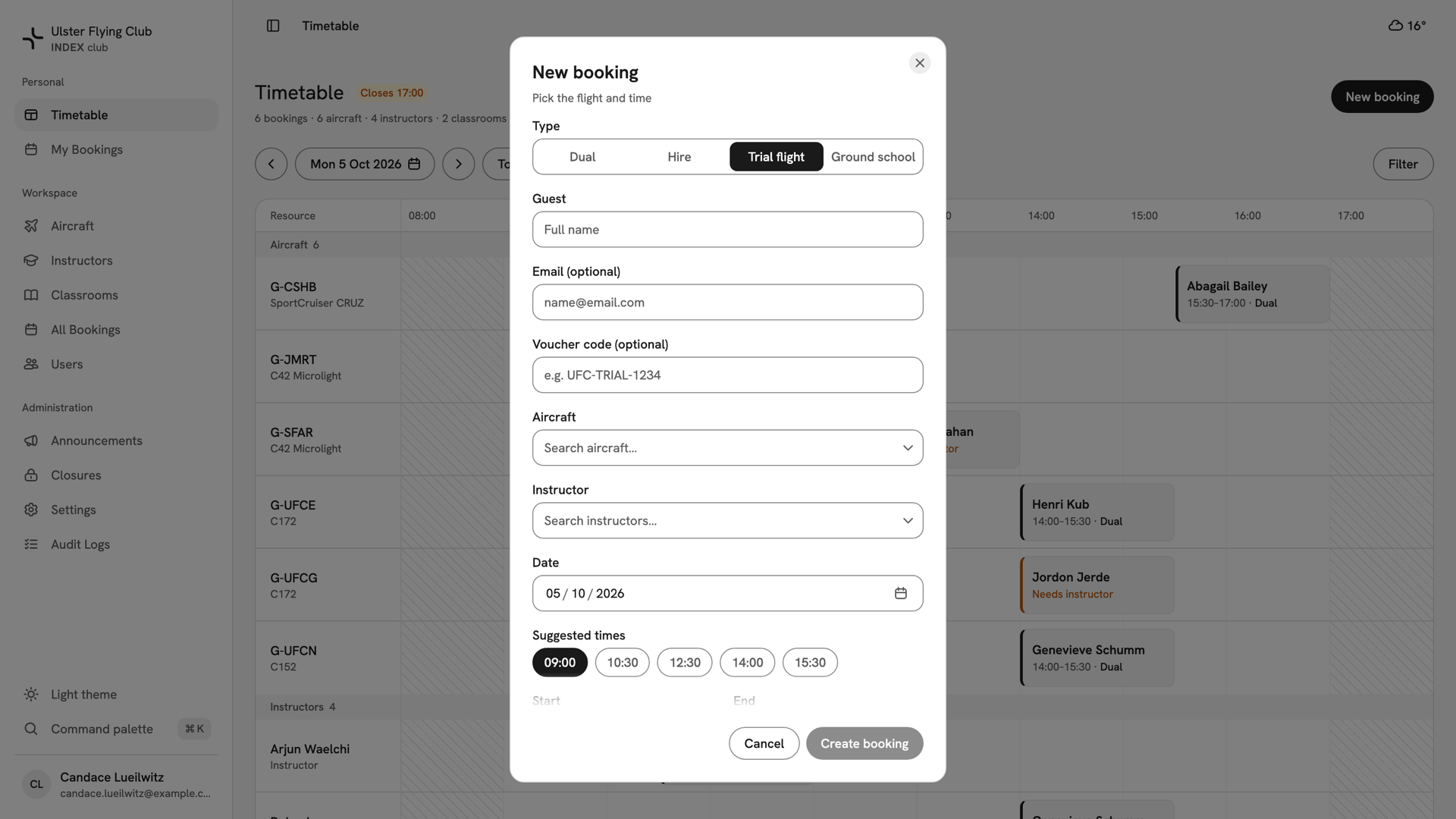
The New booking form over Monday 5 October, with Trial flight selected and the empty Guest, Email and Voucher code fields. Enter the guest
Type the guest's full name, and their email and voucher code if you have them. With an email, the guest gets a confirmation. The voucher code shows on the booking, so whoever meets the guest can check it.
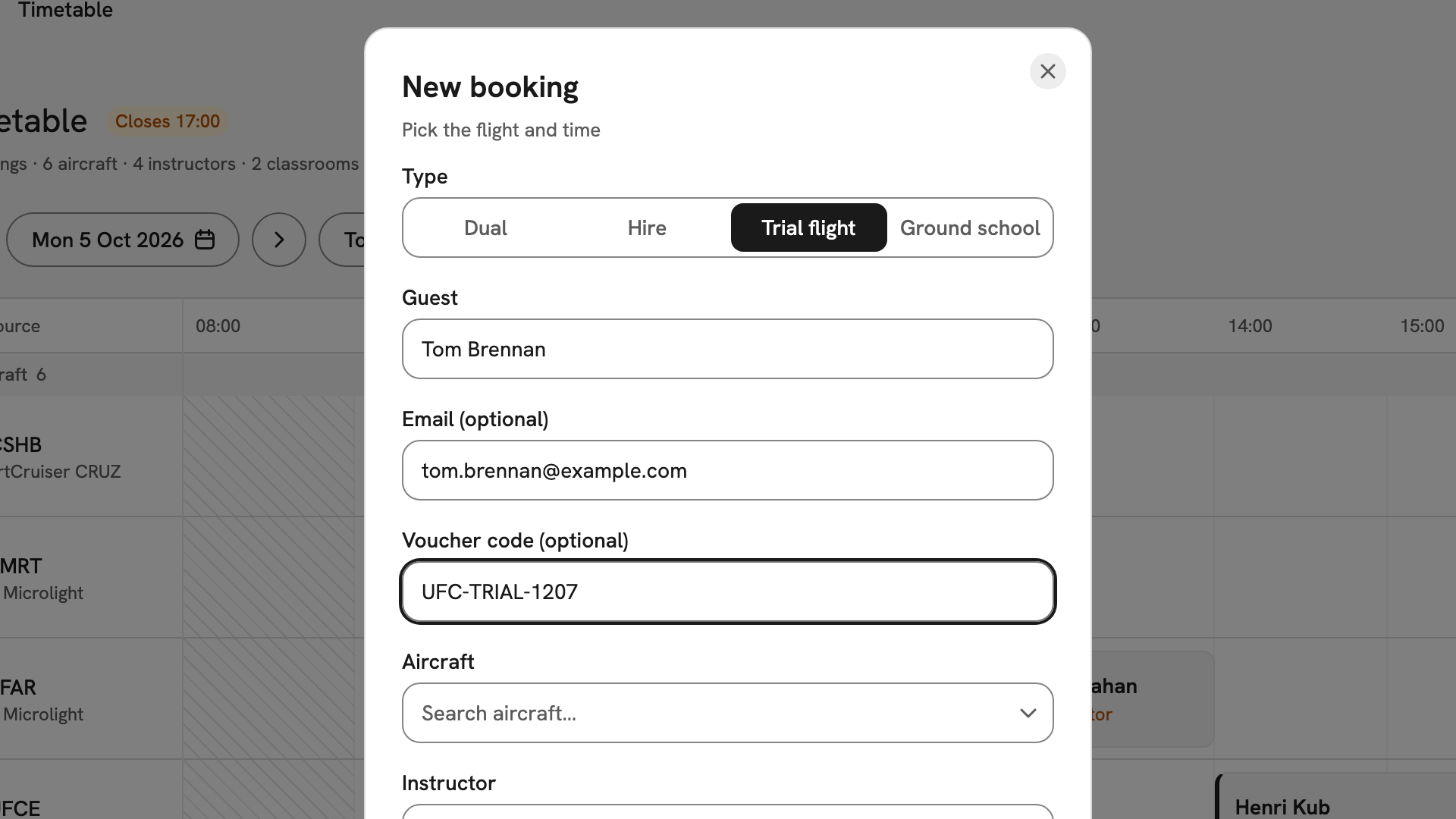
Tom Brennan entered as the guest, with tom.brennan@example.com and voucher code UFC-TRIAL-1207. Pick the aircraft and instructor
Type part of a registration or name to search. Anything you cannot book is greyed out with the reason, such as Not cleared on G-CSHB.
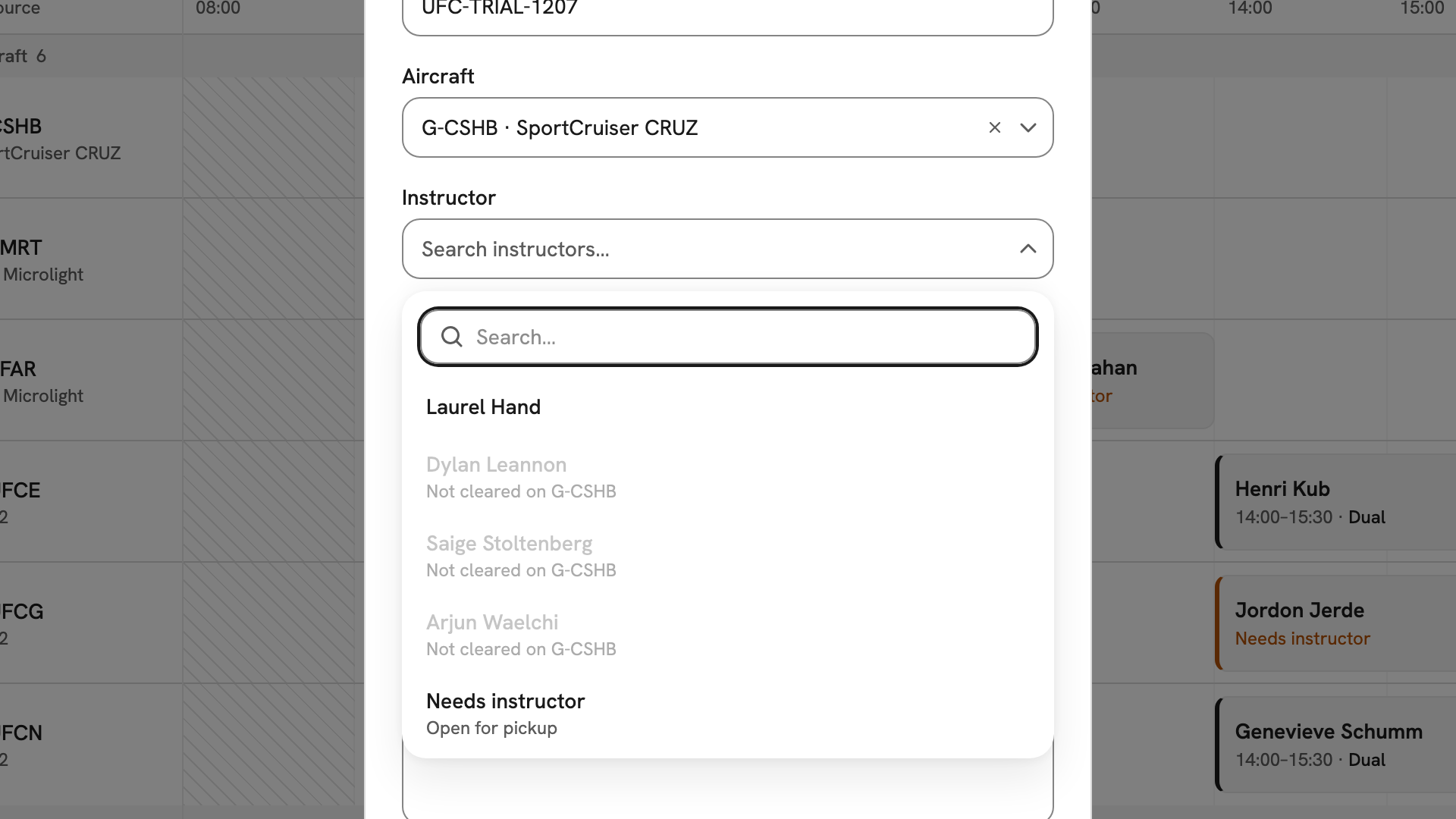
G-CSHB chosen, and the instructor list open: Laurel Hand free, three instructors greyed out as Not cleared on G-CSHB. Set the time
Check the Date, then press one of the Suggested times to fill Start and End. To use another window, type the times instead. If a time will not work, the form says why and Create booking stays disabled.
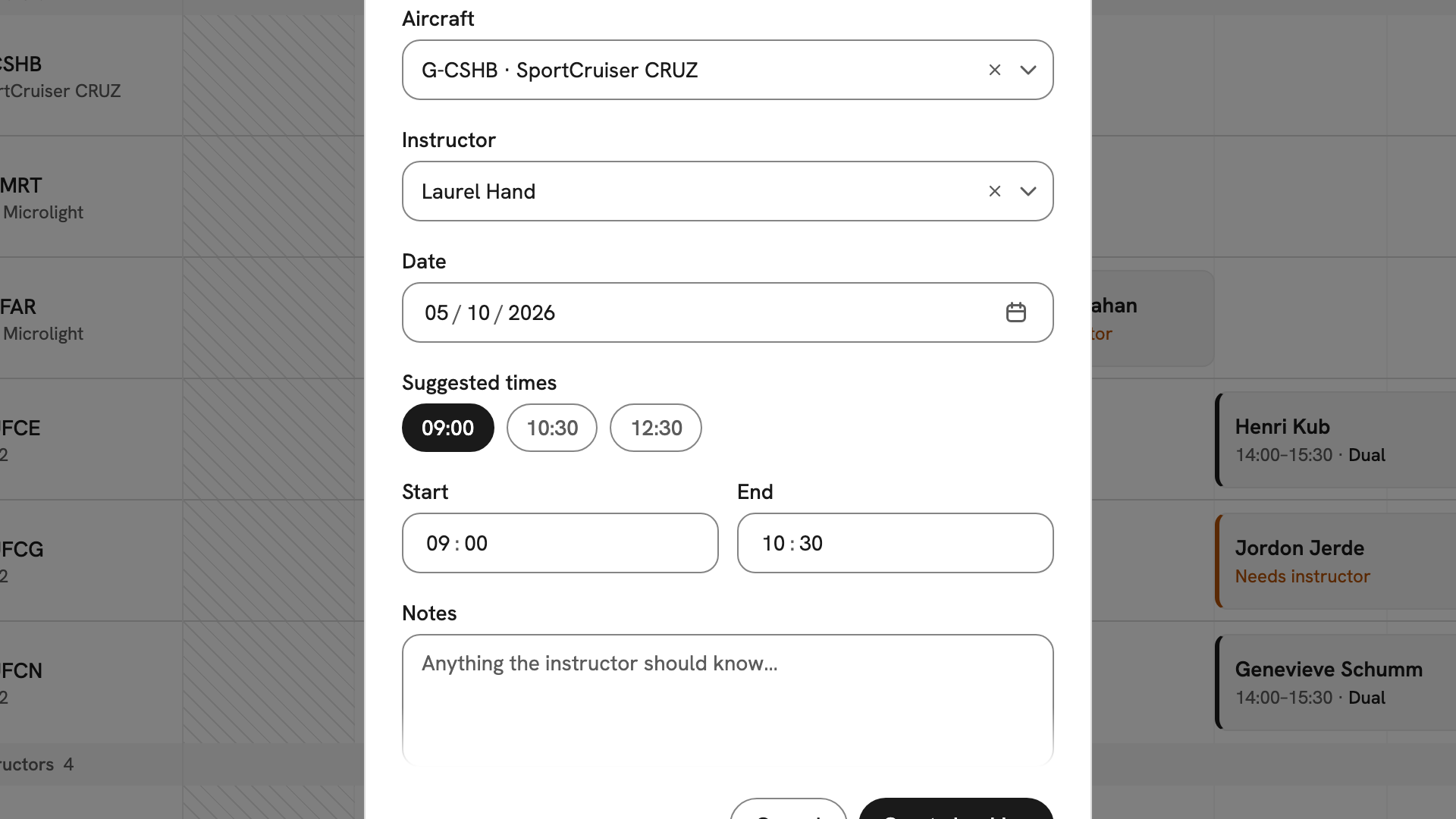
G-CSHB with Laurel Hand on 5 October, the 09:00 suggestion chosen and 09:00–10:30 filled into Start and End. Create the booking
Press Create booking. The panel says Booking created and confirmed and reads back the day, window, guest, type, aircraft and instructor. Bookings made by instructors and admins do not need approval.
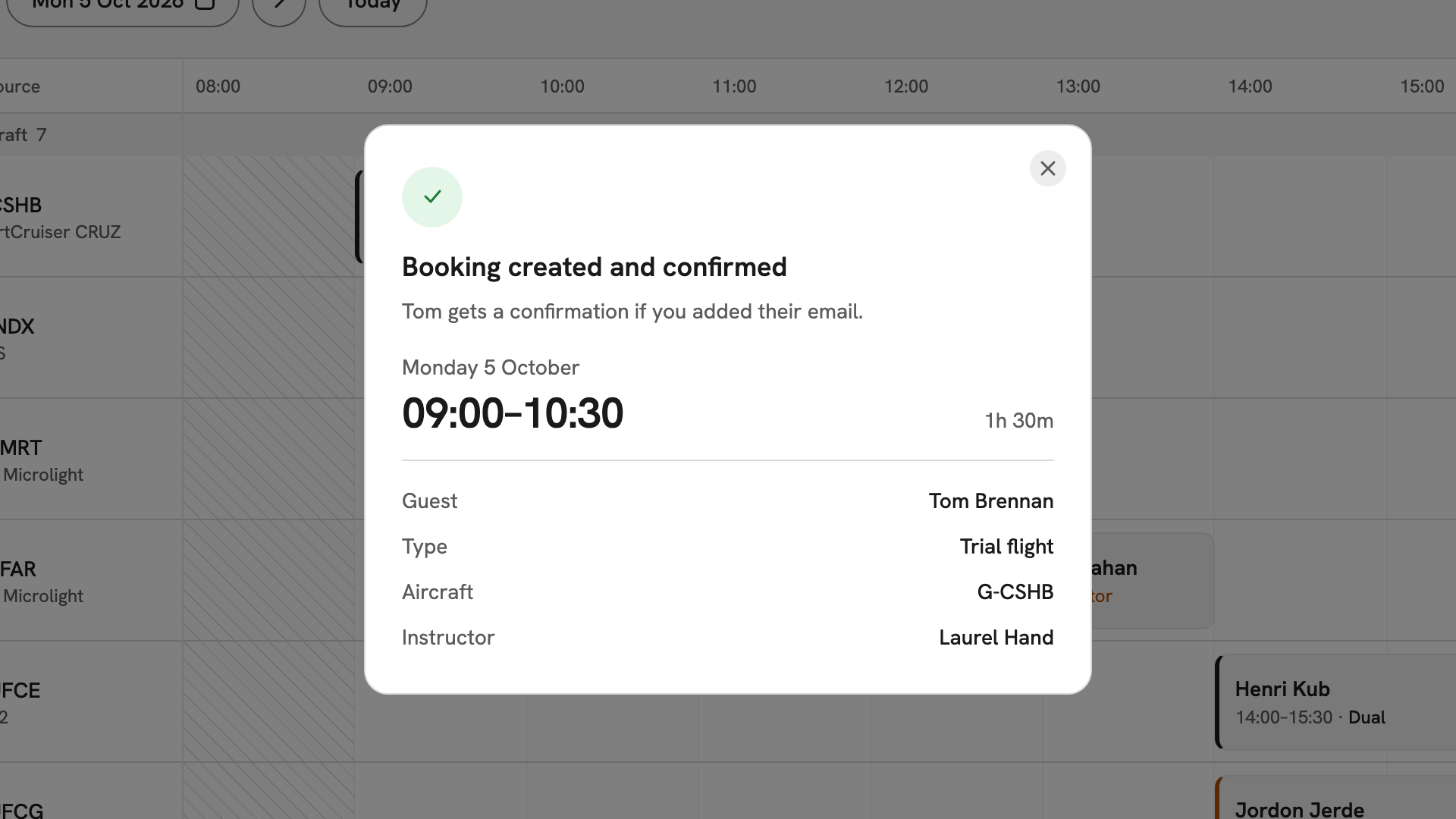
Booking created and confirmed: Monday 5 October, 09:00–10:30, Guest Tom Brennan, Trial flight, G-CSHB, Laurel Hand.
After you have booked it
The trial is on the timetable under the guest's name, in the aircraft's and instructor's rows. Press it to see the voucher code. Its type cannot be changed to a member booking, but everything else can: see Changing a booking or Cancelling a booking. After the flight, follow Signing off a booking.
If something goes wrong
- The instructor you want is greyed out. They are not cleared on that aircraft, or not free then. Change the aircraft or the window.
- "That guest email doesn't look right". Correct the address, or clear the field and save without it.
- "That voucher code is too long or has unsupported characters". Re-read the code off the voucher and type it again.
- "Outside operating hours" or "The club is closed". Something is shut at that time, and the message says what. Choose another window, or ask an admin.
Still stuck? Your club's admins see every booking and can extend a resource's hours for one day or lift a closure.
Last updated 1 October 2026