Inviting a member
Bringing somebody into the club, from the invite dialog to their name on the roster.
Every member joins INDEX Club because somebody at the club invited them. Sending an invitation takes about a minute.
Before you start
- Permission to manage members. Owners, admins and instructor-admins have it. See Roles and what they allow.
- Their email address. The invitation can only be accepted from that address, so check it before you send.
Sending the invitation
Open the invite dialog
Go to Users under Workspace in the sidebar and press Invite member at the top right. On a phone the button reads Invite, and the form opens as a sheet. If there is no button, you do not have permission to invite.
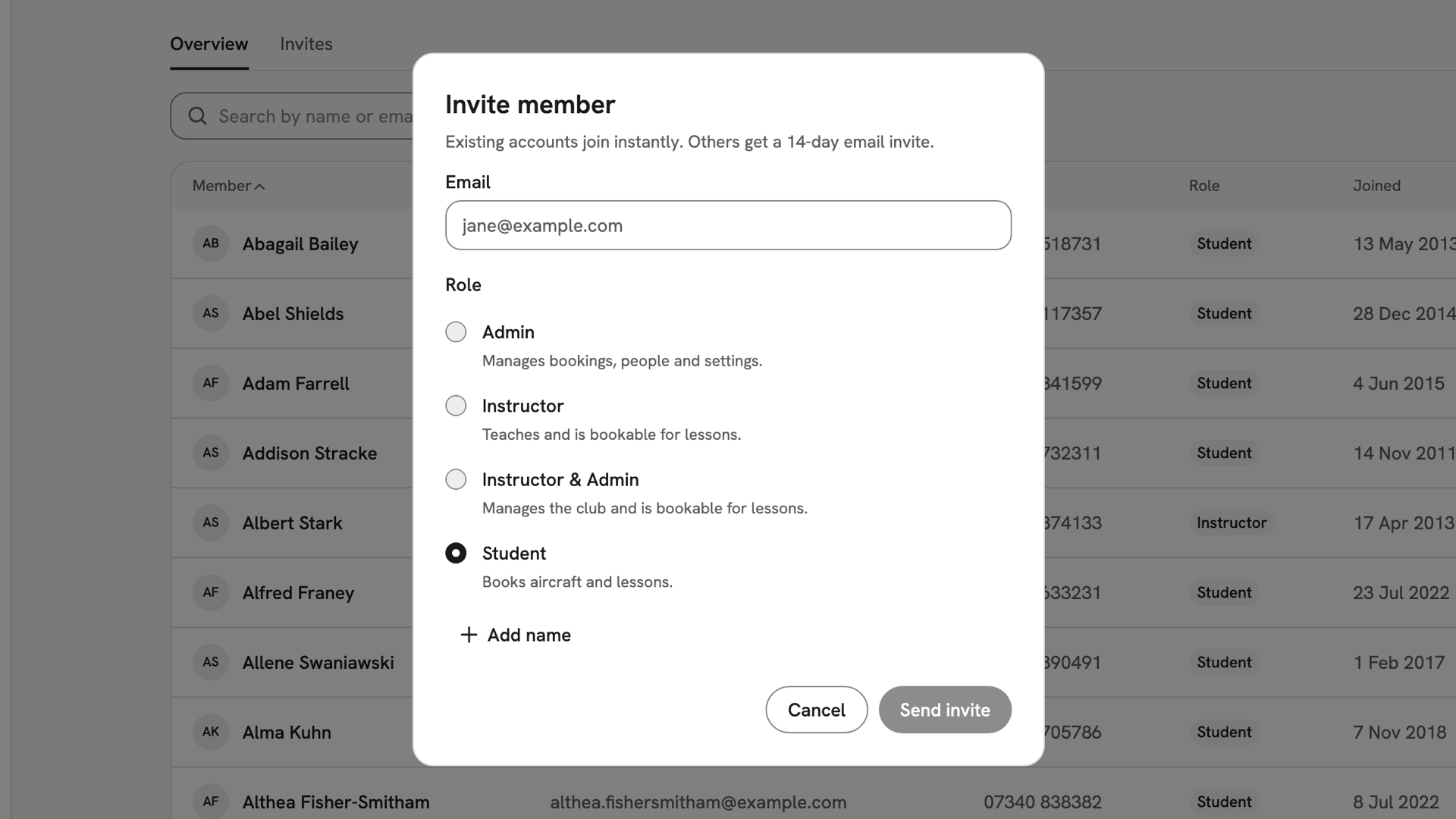
The Invite member dialog as it opens, with Role already on Student and the Add name button below the roles. Enter their details
Type their Email. Leave Role on Student unless they need something else; each role has a one-line description under it. To note who the invitation is for, press Add name and type it. They set their own profile name when they accept.
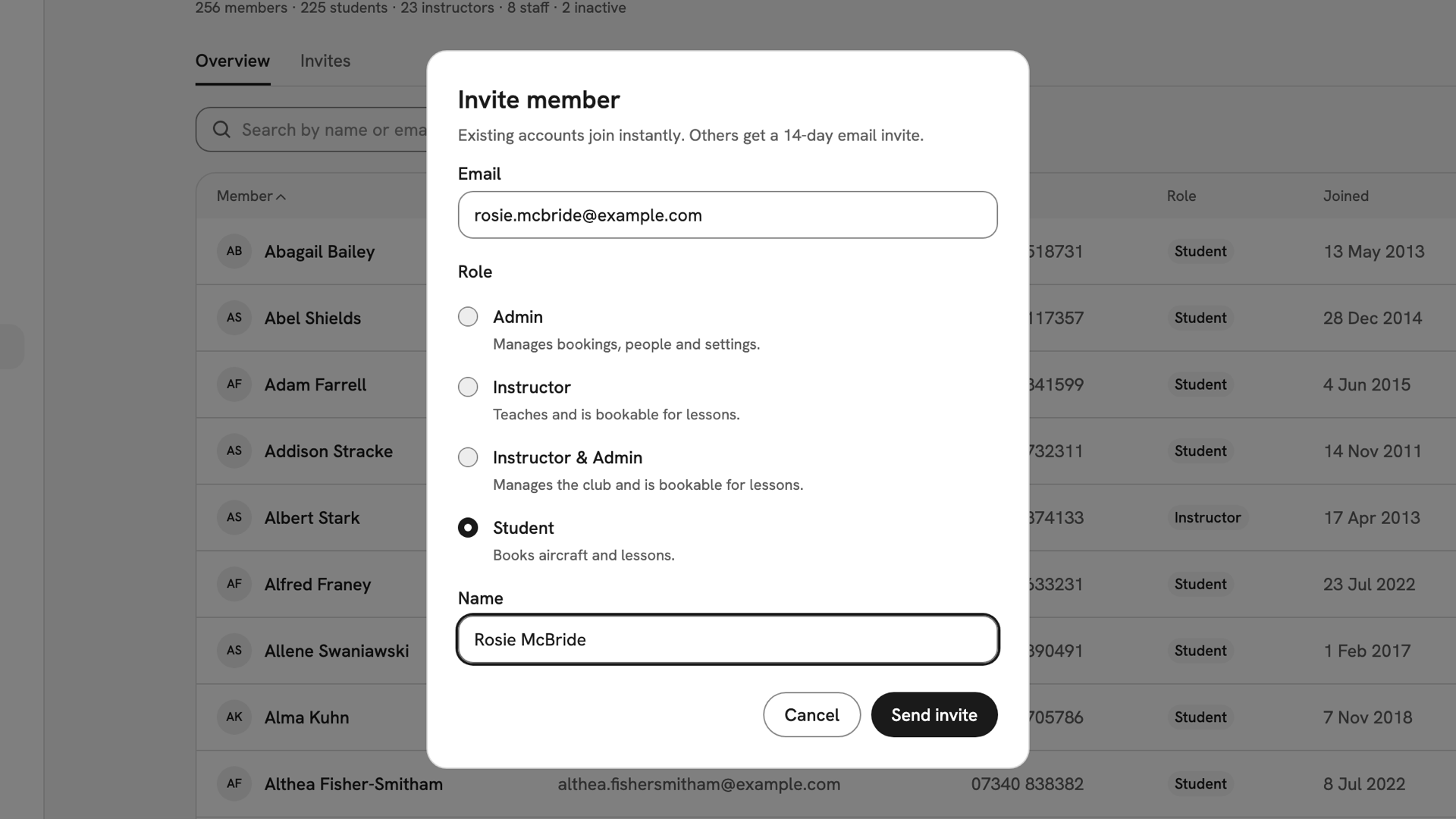
The dialog filled in for Rosie McBride: her email, the Student role, and her name in the expanded Name field. Send it
Press Send invite. Invite sent appears, and they get an email with a link that lasts 14 days. If the address already has an INDEX login, there is no email: they join the club straight away.

The Invite sent message on the Users page, straight after sending Rosie McBride's invitation. Check it is pending
Open the Invites tab on Users. The newest invitation is at the top, with its role, who sent it, the sent and expiry dates and a Pending status. It stays pending until they accept, it expires or you revoke it.

The Invites tab, with Rosie McBride's invitation at the top: Student, sent by Mustafa Kovacek, Pending.
After you have sent the invitation
The email comes from the club, not from you by name, so tell them it is on its way. To resend or withdraw it, use the ⋯ menu on its row under Invites: Resend or Revoke…. When they accept, they appear on The member roster with the role you chose. Accepting your invitation follows it from their side.

If something goes wrong
- "That role has more permissions than you can grant." Only an owner can give a role beyond their own. Ask an owner to send it.
- They say the link does not work. Check its Status under Invites. Expired or Revoked: resend it. Pending: they are probably signed in with a different email from the one you invited.
- They never received it. Ask them to check their spam folder, then resend it from Invites. Resend also retries an Invite saved — email not sent.
Still stuck? Your club's owner can see every invitation under Invites, and can resend or revoke any of them.
Last updated 1 October 2026